Updated 21 September 2026
Know where the hours actually went
What it is
A timer that attaches to a task instead of to a stopwatch app. You start it from the task, and the time it collects is stored against that task — which is why it can be rolled up afterwards per task, per list and per workspace without anyone keeping a second spreadsheet. It is a Premium Plus and Team feature; the free and Premium plans do not include it.
When you would use it
A freelancer sending an invoice at the end of the month needs to know that the webshop redesign ate 19 hours while the "quick" logo tweak took four. A small team wants to see where the week went before the next planning meeting. And anyone who has ever written "2h" in a timesheet at 18:00 on Friday — while having no memory of Friday morning — wants the number to have been collected, not remembered.
How it works in Taskr
- Start tracking from the task. The task menu has Start tracking; the row then shows a live elapsed-time badge and a tracker pill stays visible across the dashboard, so you can see the clock running while you work in another list.
- Stop it, or let the next start stop it. One timer runs per person. Starting a timer on a different task stops the one that was running, and the time stays on the task where it was actually tracked.
- Answer the reminder. Each account has a reminder interval for the tracker (60 minutes by default, set in the tracker settings tab). When it is reached, a confirmation window opens with the time so far and how long you have before the tracker stops; continuing adds another interval, stopping closes the entry. If it is not answered within two minutes, the timer stops on its own.
- Read the statistics per list. The list menu has View stats: the tracked total, a 14-day trend, the tasks the time went into, who contributed and which timers are running right now.
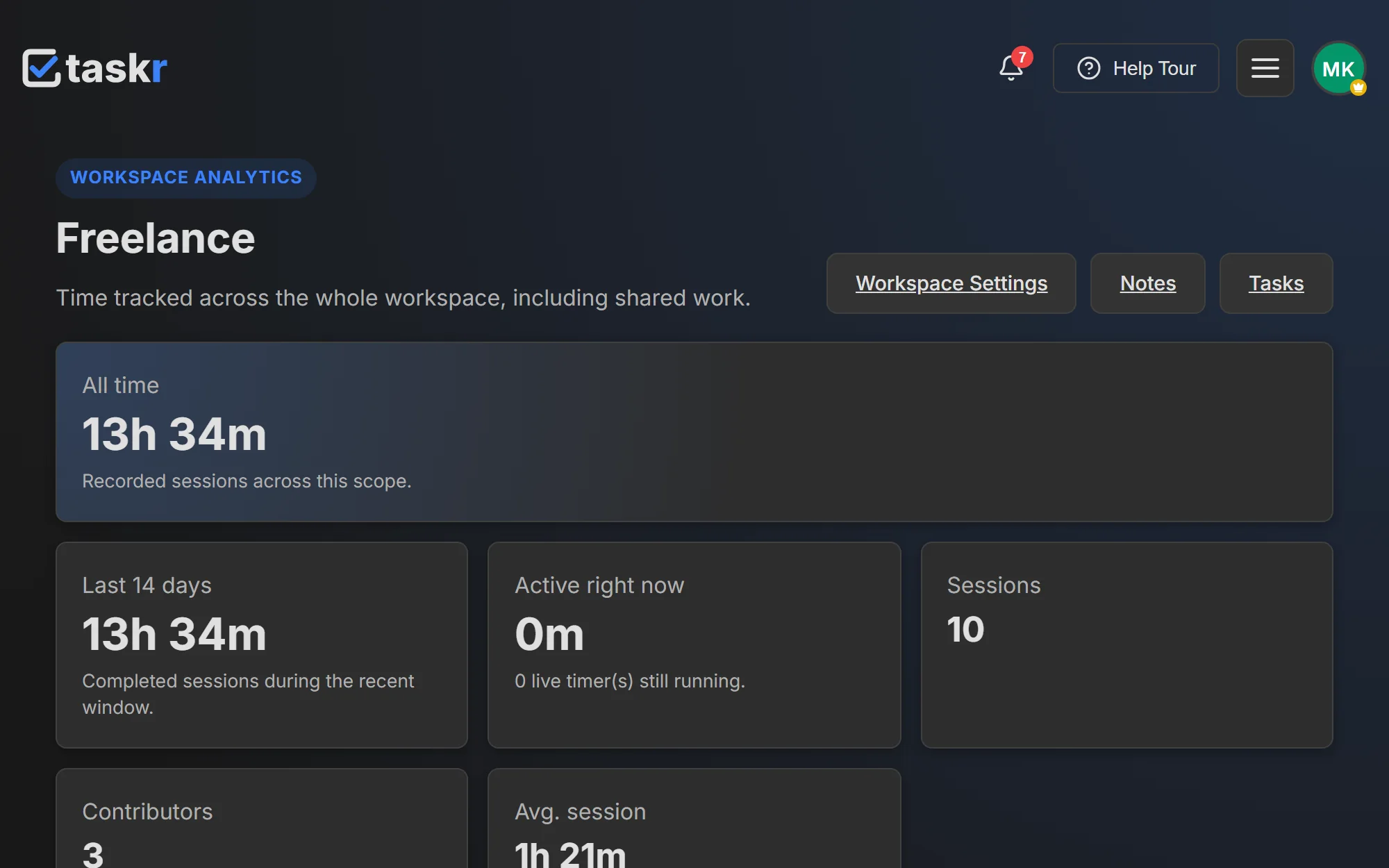
- Or look at the whole workspace. The workspace statistics page shows the same picture one level up, so a client project can be reviewed without opening each list.
What to watch out for
Time tracking is Premium Plus and Team only — not free, not Premium. In a shared workspace the statistics respect roles: a viewer or editor sees only their own tracked time, while the owner and moderators see the whole workspace including the contributor breakdown. A tracker that is already running can always be stopped and confirmed even if the plan changes underneath it, so no time is ever stranded mid-session; starting a new one is what needs the feature on the plan. Deleted tasks and lists do not silently disappear from the statistics either — their rows stay with the real name and a deleted badge, so an old report still adds up.
Where to go next
- Team collaboration, for the roles that decide who sees whose hours
- Workspaces, for how statistics are scoped to one workspace
- Guides: browse the Taskr guides
Create a free account and start with the board — time tracking is a click away when you need it.
Ready when you are.
Create a free account