Create your first task with a deadline
In Taskr a task without a deadline is just a note. This is the two-minute version of the whole app: make a list, add a task, give it a date — and watch the countdown start running.
You need nothing except your Taskr account. The free plan is enough.
1. Open a workspace
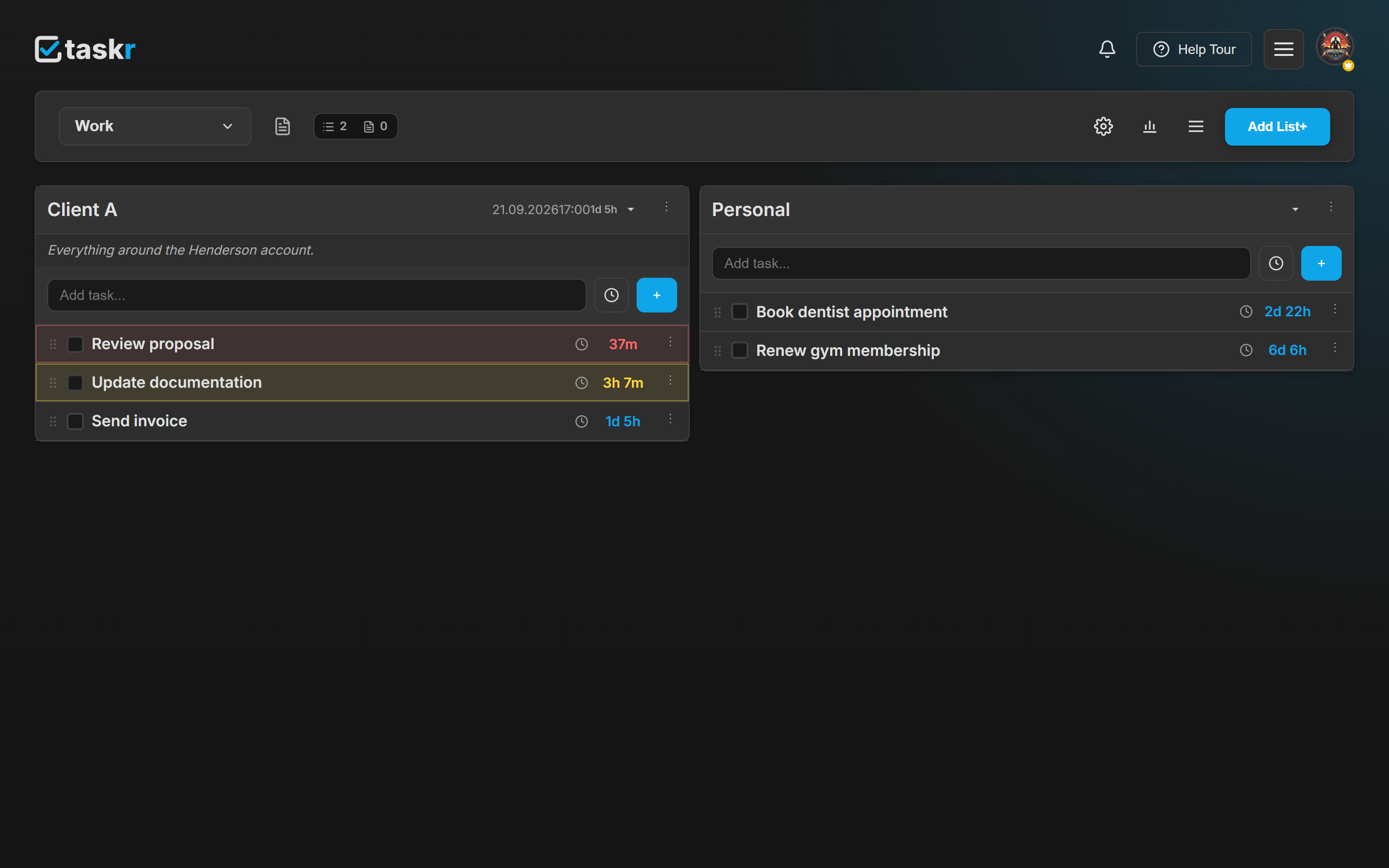
Workspaces keep separate parts of your life apart — work, study, personal. One is already waiting for you when you sign up, and its name sits at the top left of the board: click it to switch between workspaces.
2. Create a list
Lists live inside a workspace. One list per project, per client, per day — whatever matches the way you actually work.
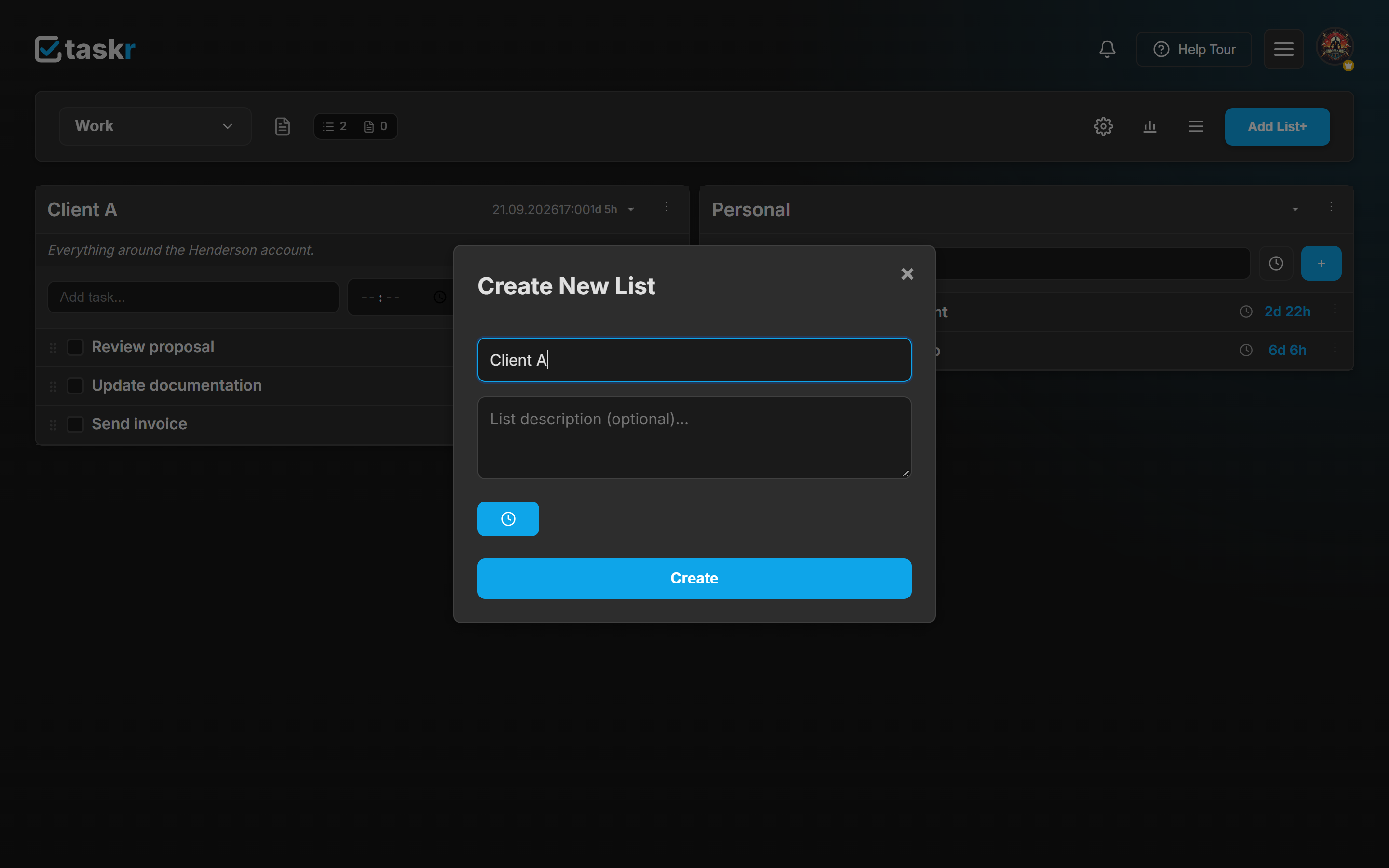
Click Add List+ in the toolbar. The dialog asks for a name; the description is optional.
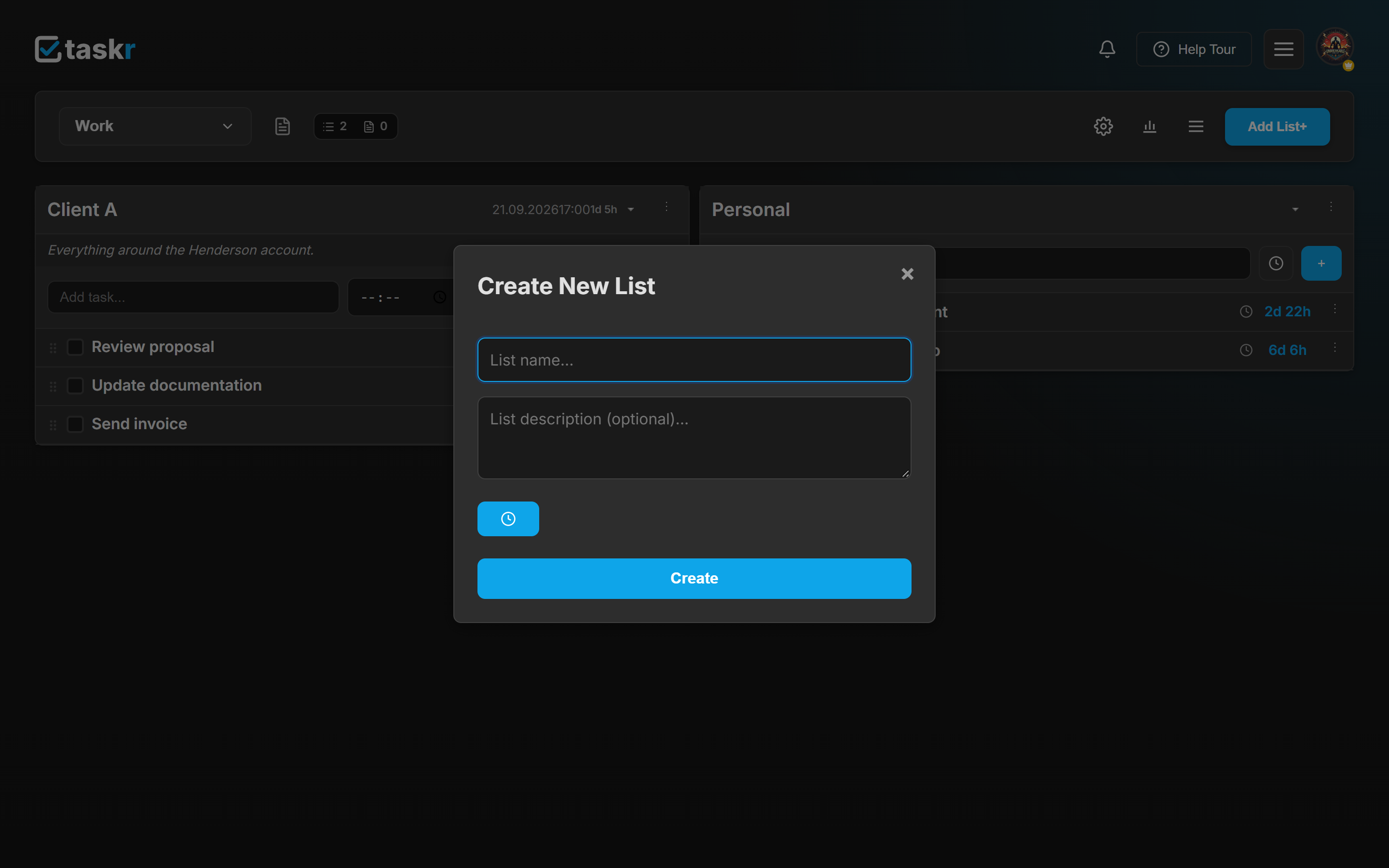
A list can carry its own deadline too — that is how most people plan a whole day, and it is covered in put a deadline on a whole list.
3. Add the task
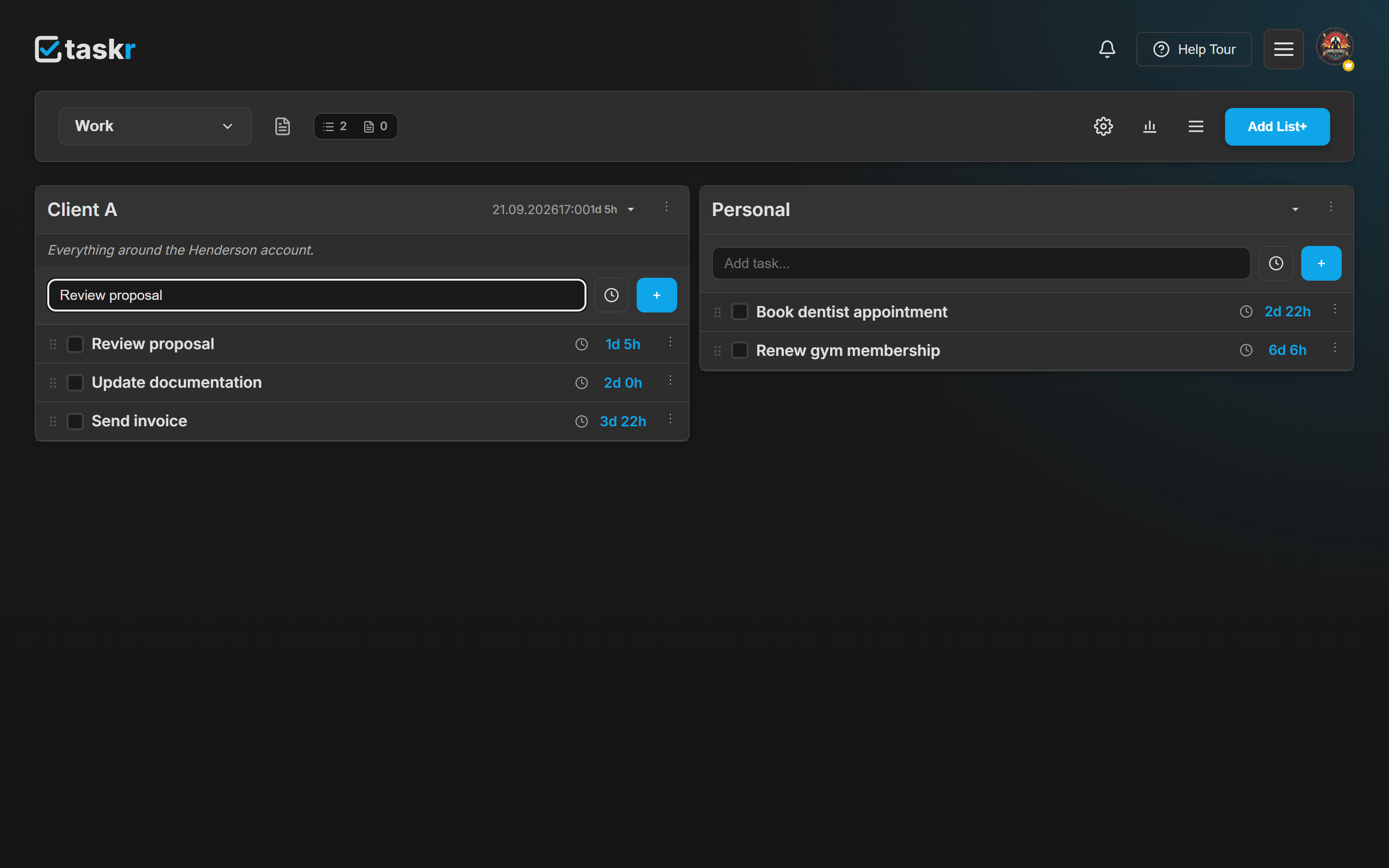
Inside the list there is an input with the placeholder Add task.... Type the thing you have to get done. Nothing is saved yet — that happens when you press Enter.
4. Give it a deadline before you press Enter
Click the clock icon on that same row — Add time & date — and pick the date, then the time.
Now press Enter: the task lands in the list with a live countdown in days, hours and minutes. The number changes colour as the moment gets closer — neutral, then amber, then red, then due.
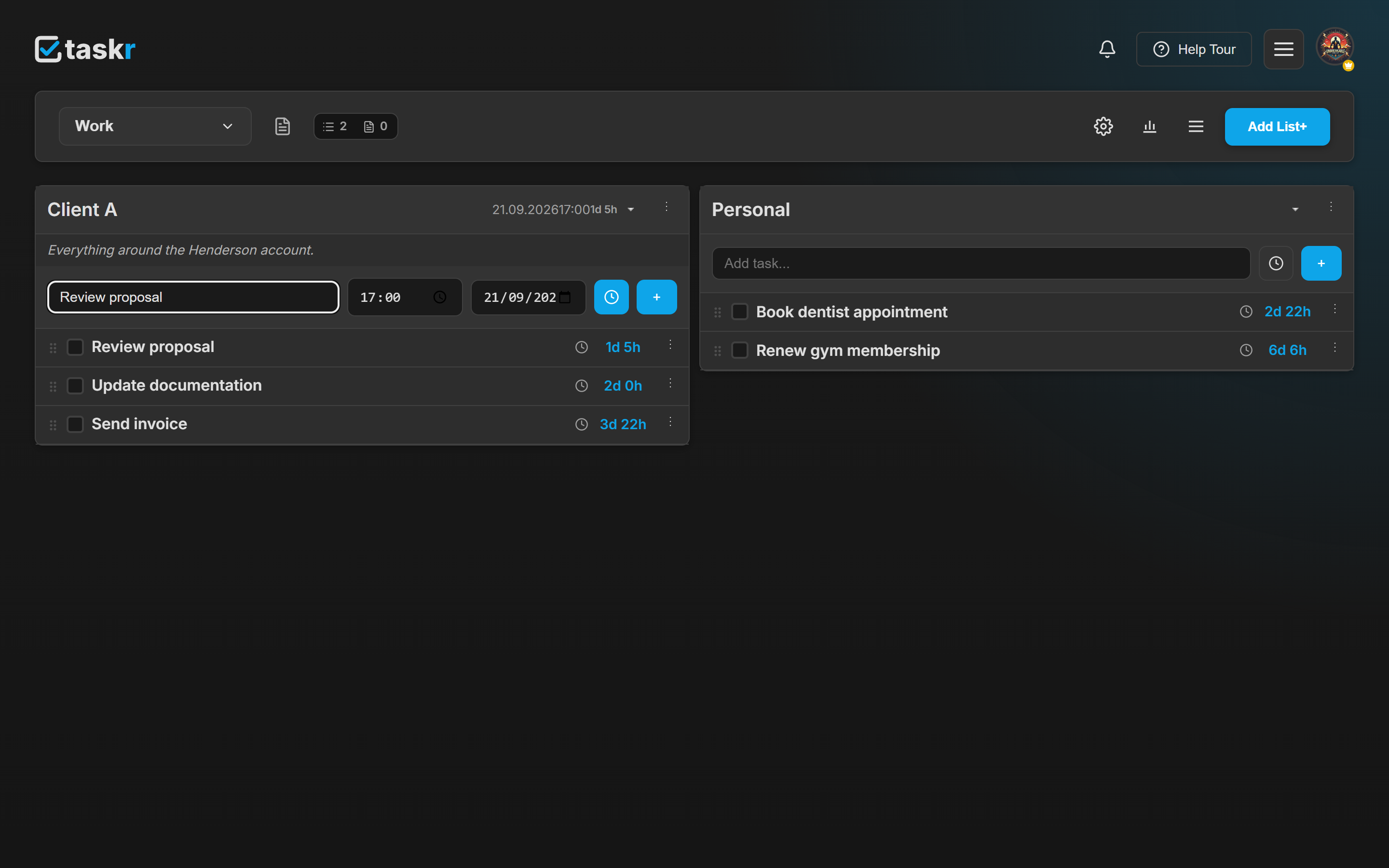
You can set or change a deadline later as well — the same clock control sits on every task row.
Deadline first, details later
Double-click any task to open it and add a longer description in Markdown — checklists, links, images, whatever the task needs. None of it is required to set a deadline.
What the colours mean — and why the order changes on its own
A countdown moves through four states, and the first two thresholds are yours to set:
| State | When it happens | What you see |
|---|---|---|
| plain | still further away than your orange threshold | the countdown in the normal text colour |
| orange | within Task turns orange minutes (default 20) | the countdown turns orange and the task row is tinted |
| red | within Task turns red minutes (default 10) | countdown and row turn red |
| Due! | the deadline is in the past | stays red, reading Due!, until you complete it |
In the last five minutes — or your red threshold, if it is smaller — the label switches to a live MM:SS counter, so the final stretch is impossible to miss.
The list also reorders itself: overdue tasks come first, then whatever is due soonest. You never sort by hand, and dragging a task around does not take that away — urgency simply wins. Completed tasks drop to the bottom.
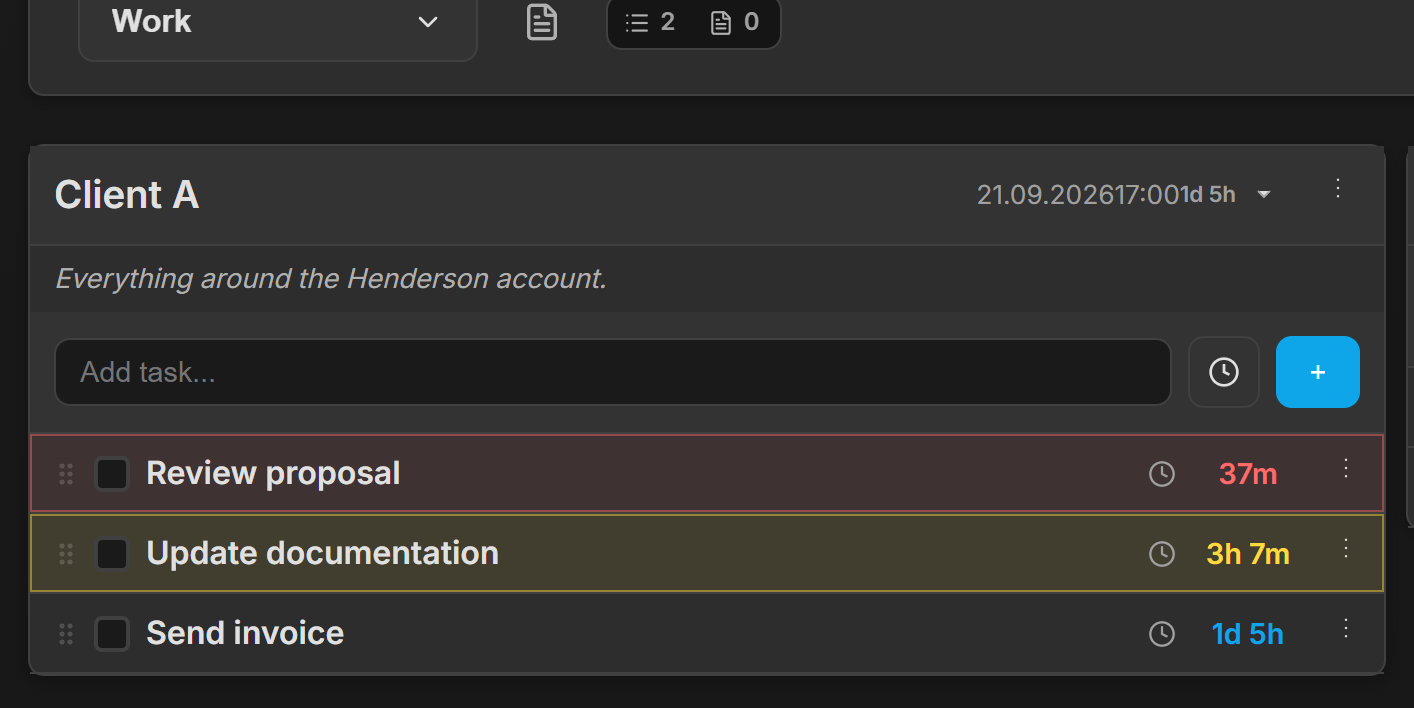
Both thresholds live in Settings → Tracker, as Task turns orange and Task turns red.
5. Optional: get warned before it hits
A countdown you have to go looking for is only half useful. Open the task's ⋮ menu and pick Set Reminder — Taskr then sends a web push notification before the deadline.
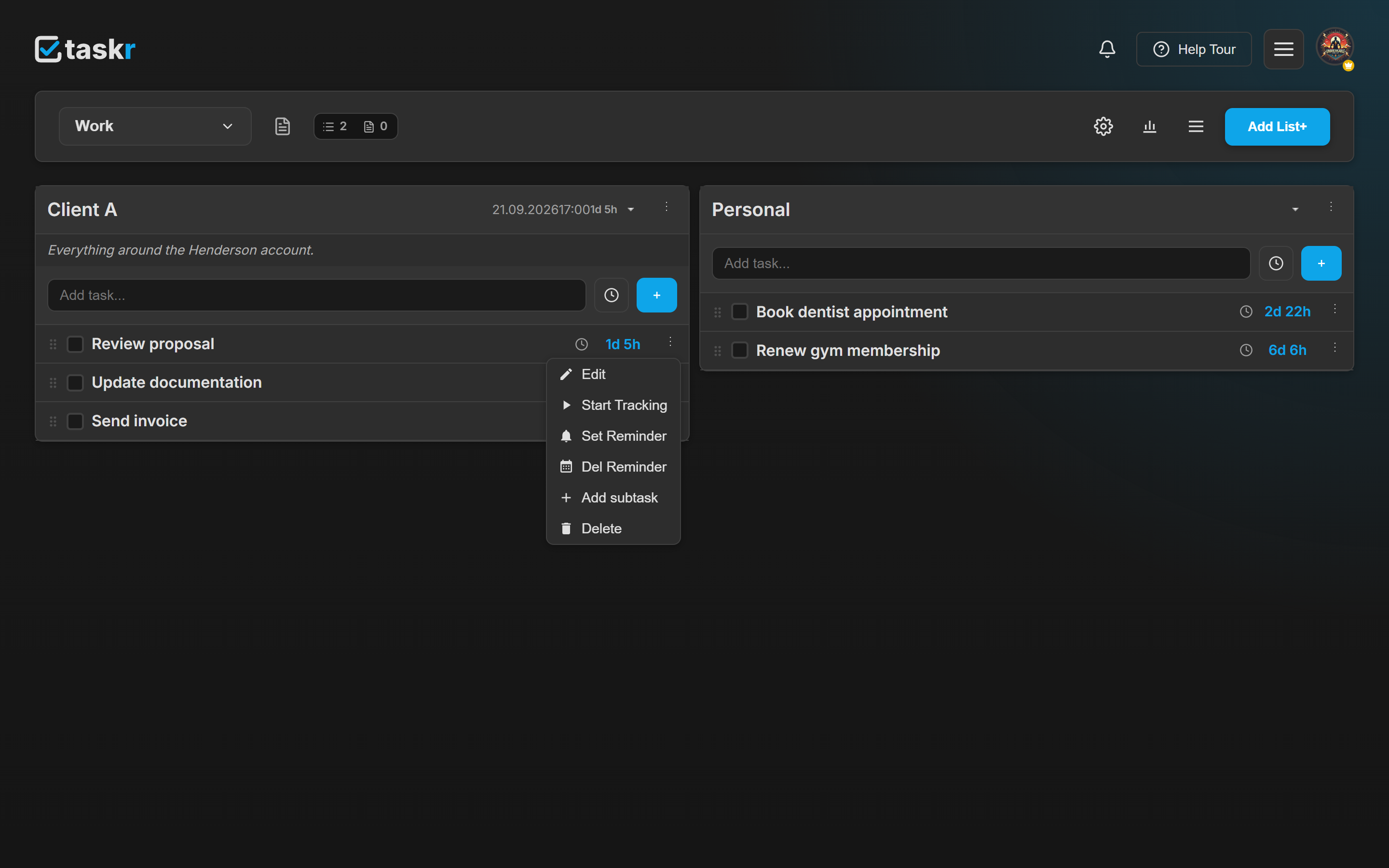
If you plan to rely on reminders, install Taskr so notifications do not depend on a browser tab being open.
What happens next
- The countdown is live. Days, hours and minutes left, colour-coded by urgency, on the task and on the list — see Client A above, where the list itself carries a deadline in its header.
- Recurring tasks repeat daily, on chosen weekdays or every N days, with an optional end date — good for the work that comes back every week.
- Completed tasks keep their history instead of disappearing, so a finished week is still readable.
- Separate workspaces mean work, study and personal lists never mix.
If something does not look right
No countdown on my task. The date is set but the time is missing, or the deadline is in the past. Open the clock control again and check both fields.
Set Reminder says I need a date first. Reminders ride on the deadline — set the date and time, then set the reminder.
I need to change the deadline. Click the same clock control on the task row; it edits the value rather than adding a second one.
I work without signal. Taskr keeps lists and notes readable offline and syncs when you are back. See install Taskr on desktop and Android.
Ready when you are.
Create a free accountLast checked against the app: 2026-09-20