Draw diagrams in your notes with Mermaid
Some things are easier to follow as a picture: an approval process, who talks to whom during a handover, the phases of a launch. In a Taskr note you describe the picture in a few lines of text, and Taskr draws it. There is nothing to drag into place, and changing the diagram means changing a line of text.
Diagrams use Mermaid, a widely used text format for diagrams, and they work on every plan.
1. Add a diagram to a note
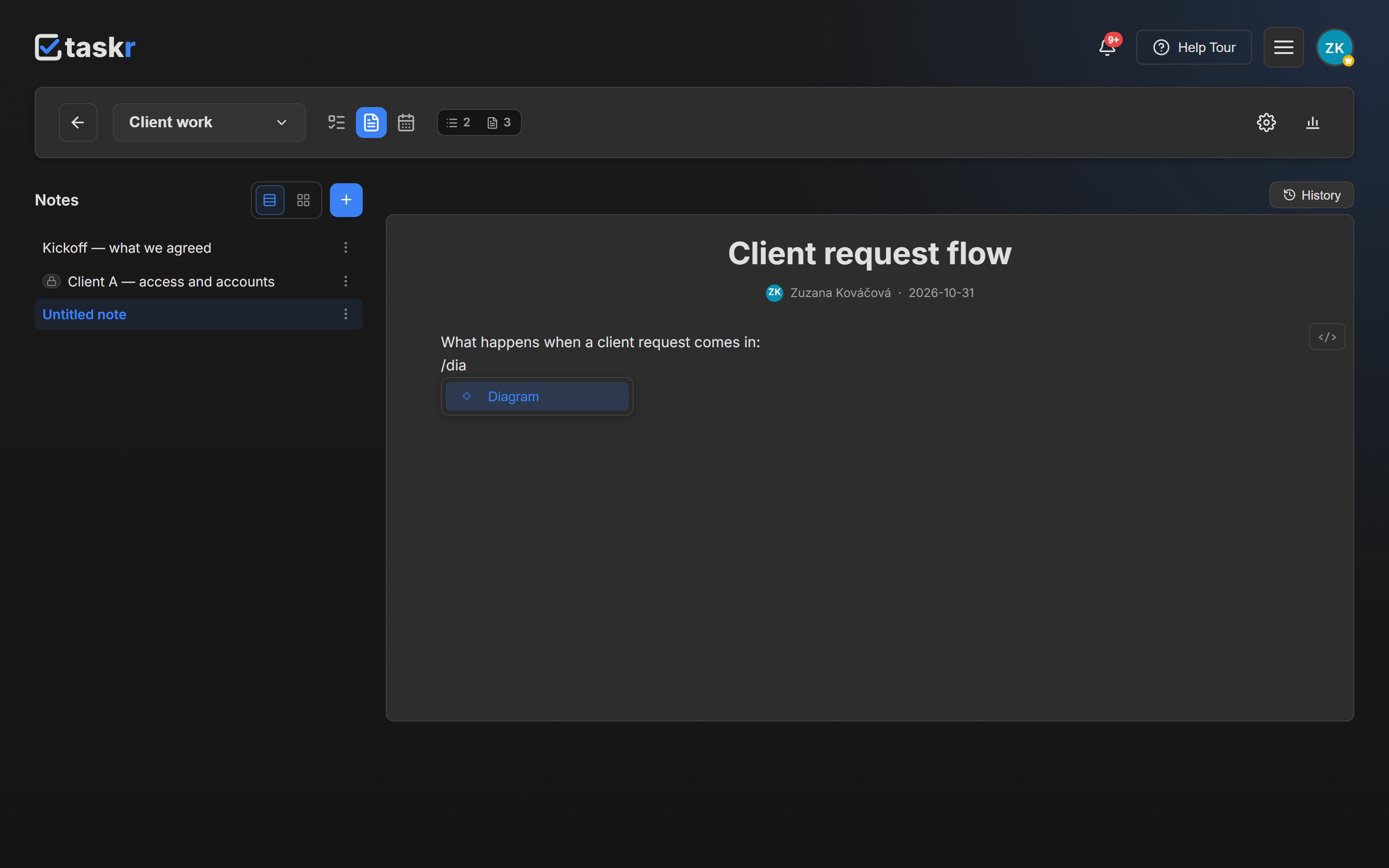
Open a note, click where the diagram should go, and type /dia. Choose Diagram from the menu
and press Enter.
If you prefer the keyboard, type ```mermaid followed by a space at the start of an empty line.
It inserts the same block.
2. Write the diagram
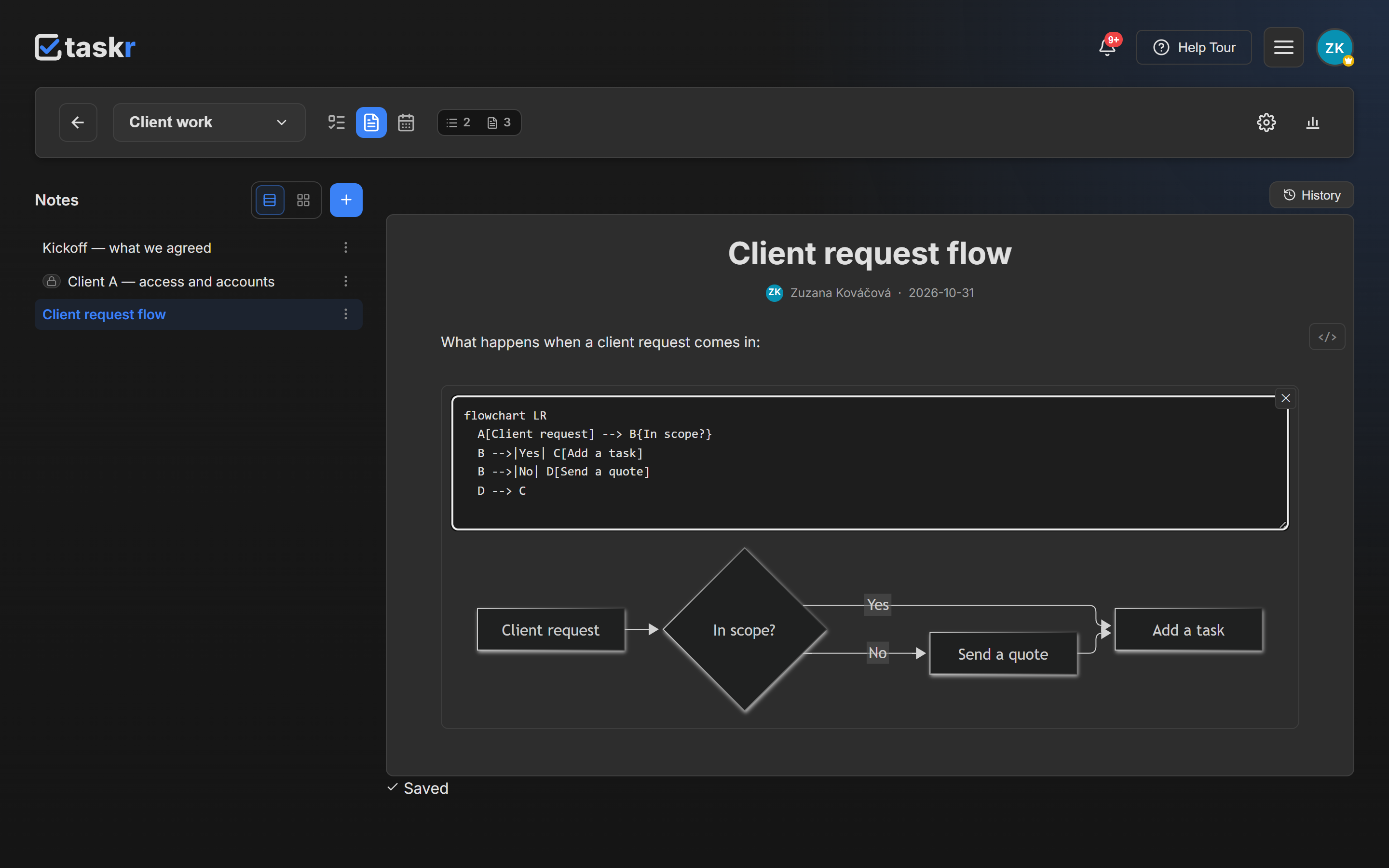
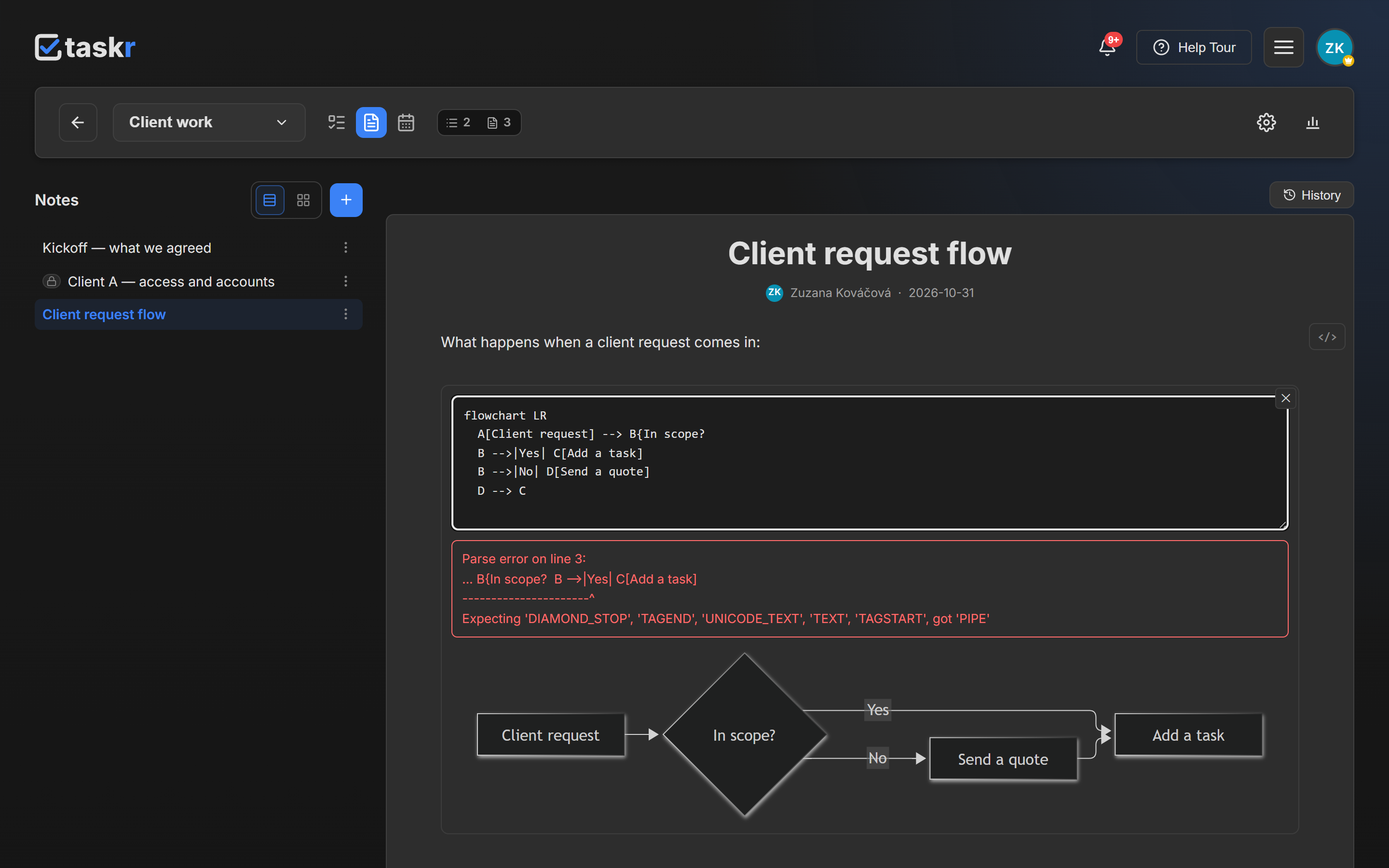
The block opens with a small starter flowchart. Replace it with your own text. The preview under the text field redraws shortly after you stop typing:
flowchart LR
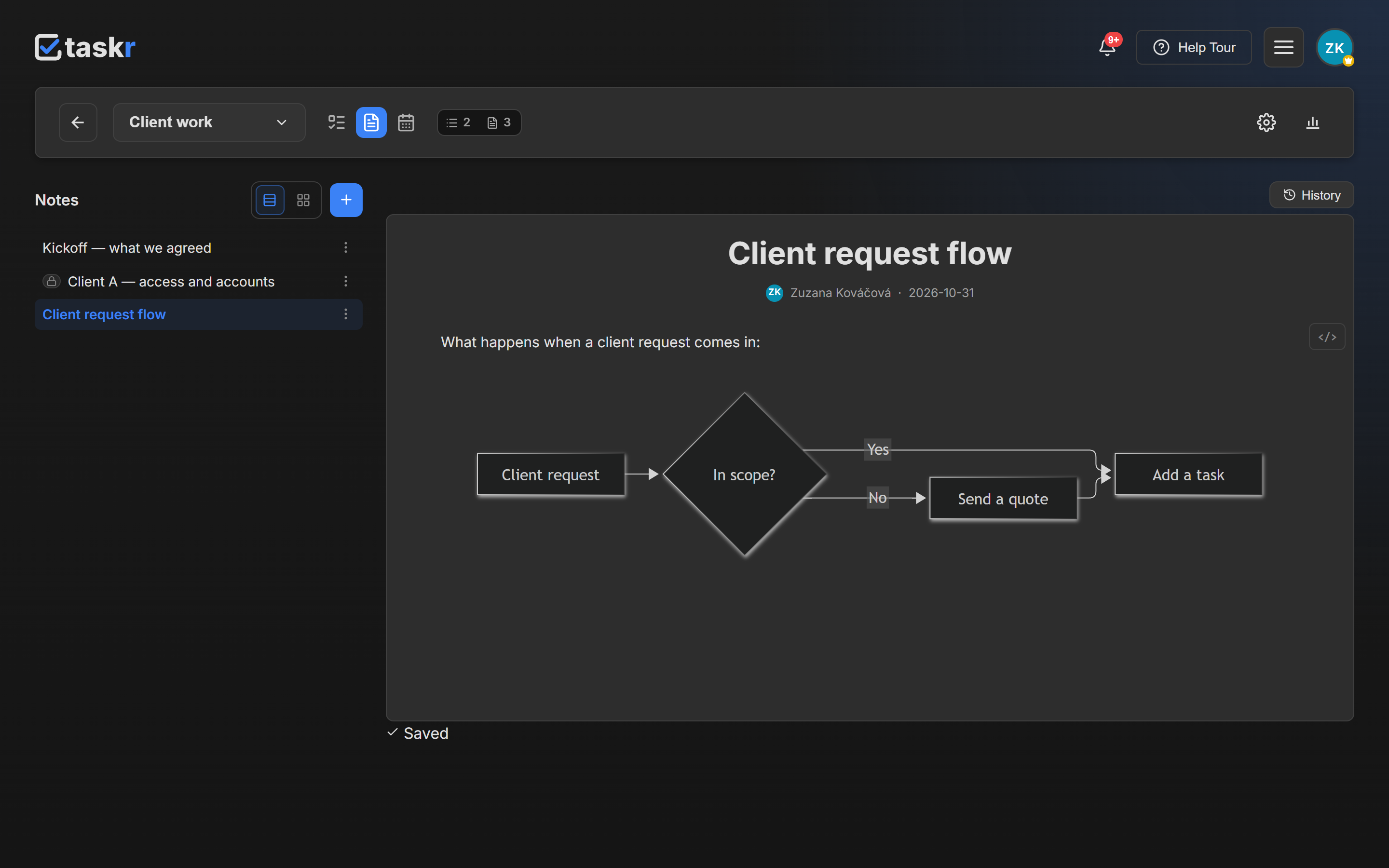
  A[Client request] --> B{In scope?}
  B -->|Yes| C[Add a task]
  B -->|No| D[Send a quote]
  D --> C
Each line connects two steps. Square brackets draw a box, curly braces draw a decision, and the text
between the | characters labels the arrow. LR makes the chart run left to right; use TD for
top to bottom.
3. Close the block
Press Esc or click anywhere outside the block. The text field disappears and the finished diagram stays in the note.
4. Change or delete it later
- To edit, click the diagram. Your text opens again with the preview under it.
- To delete, hover over the diagram and click the ✕ in its corner.
People who can only read the note see the finished diagram and cannot open the text. Diagrams also redraw to match when you switch between the light and dark theme.
Other diagram types
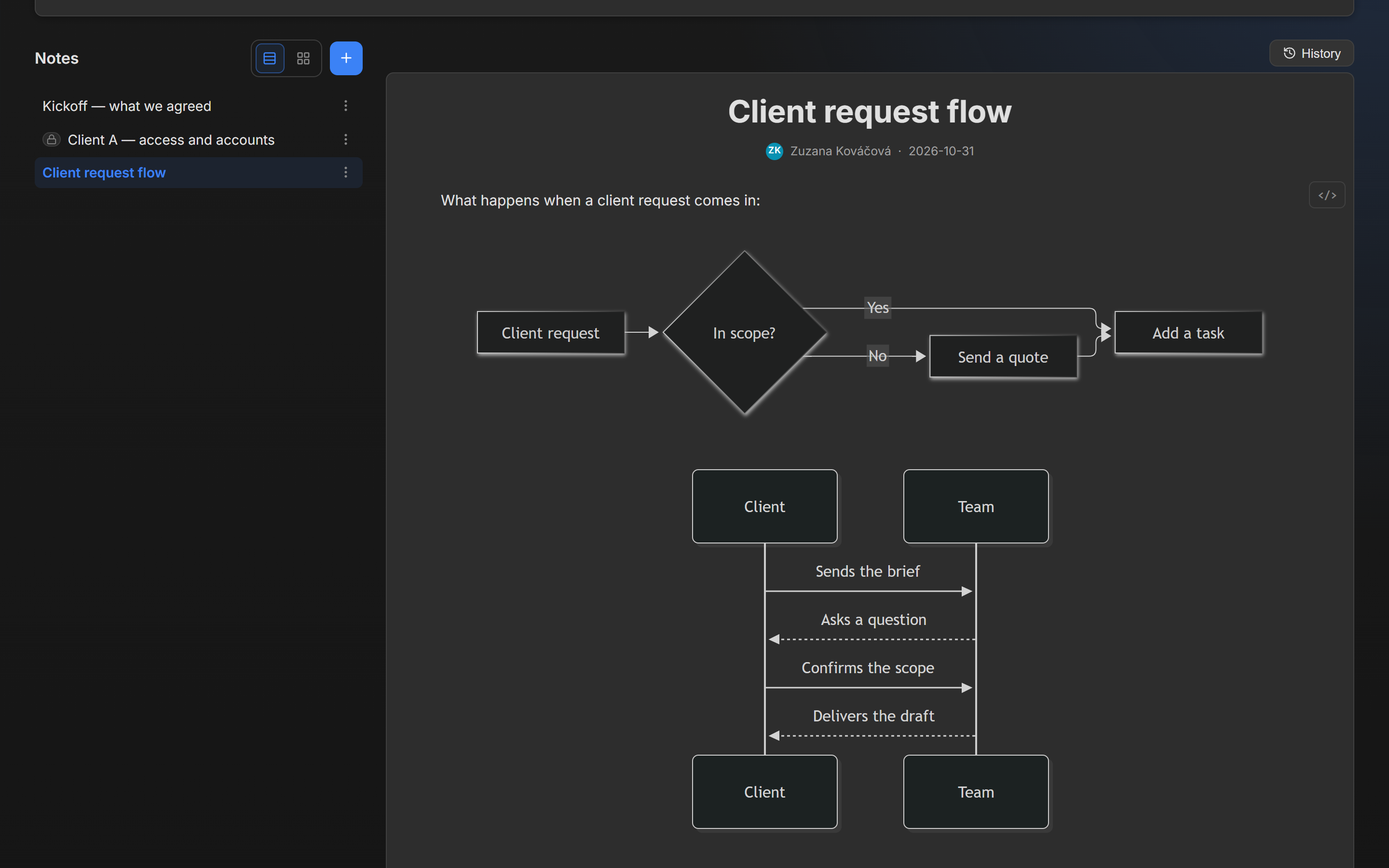
The first word decides what Mermaid draws. This sequence diagram shows a conversation between two sides:
sequenceDiagram
  participant C as Client
  participant T as Team
  C->>T: Sends the brief
  T-->>C: Asks a question
  C->>T: Confirms the scope
  T-->>C: Delivers the draft
Start with one of these words for the other common types:
| First line | What you get | Good for |
|---|---|---|
flowchart LR | Boxes and arrows | Processes and decisions |
sequenceDiagram | Messages between participants | Handovers, who does what when |
gantt | Bars on a timeline | Project phases |
pie | A pie chart | Simple shares |
stateDiagram-v2 | States and transitions | The stages an item moves through |
classDiagram | Classes and their links | Software structure |
erDiagram | Entities and relationships | Database design |
mindmap | A branching map | Brainstorming |
timeline | Events by period | Roadmaps and history |
For every option each type offers, see the Mermaid syntax reference.
Add a diagram through the API
A diagram is saved in the note as a plain fenced block, so a script or an AI assistant can write one with the REST API or MCP server. Put this in the note's content:
```mermaid
flowchart LR
  A[Client request] --> B[Add a task]
```
The text also stays readable if you copy the note somewhere else.
If something does not look right
A red message appears above the preview. Mermaid could not read the text. The message names the
line where it got stuck, and the preview keeps showing your last working version until you fix it.
Nothing is lost: your text is still saved. The usual cause is an unclosed bracket, as here, where the
} after In scope? is missing:
A pasted Mermaid block shows up as text. A pasted block turns into a diagram only after the note reloads. Wait for Saved, then refresh the page.
"Images aren't supported in diagrams." Taskr refuses pictures inside a diagram, so that a note cannot make a reader's browser contact another site. Put the image in the note, next to the diagram.
Clicking a node does nothing. Links and click actions inside a diagram are turned off, because shared notes can hold text written by other people. Put the link in the note text instead.
I cannot put text above a diagram at the top of the note. There is no line above the first block to click into. Delete the diagram, write the text, and add the diagram again below it, keeping a copy of its text first.
Ready when you are.
Create a free accountLast checked against the app: 2026-10-31