Install Taskr on desktop, Android and iPhone
Taskr runs in a browser tab, but it installs like an ordinary app. Installed, it opens in its own window without browser bars, starts faster, and keeps your lists and notes readable when there is no signal.
Nothing about your account changes. The installed app is the same Taskr — same workspaces, same lists, same tasks.
1. Install from the card in the app
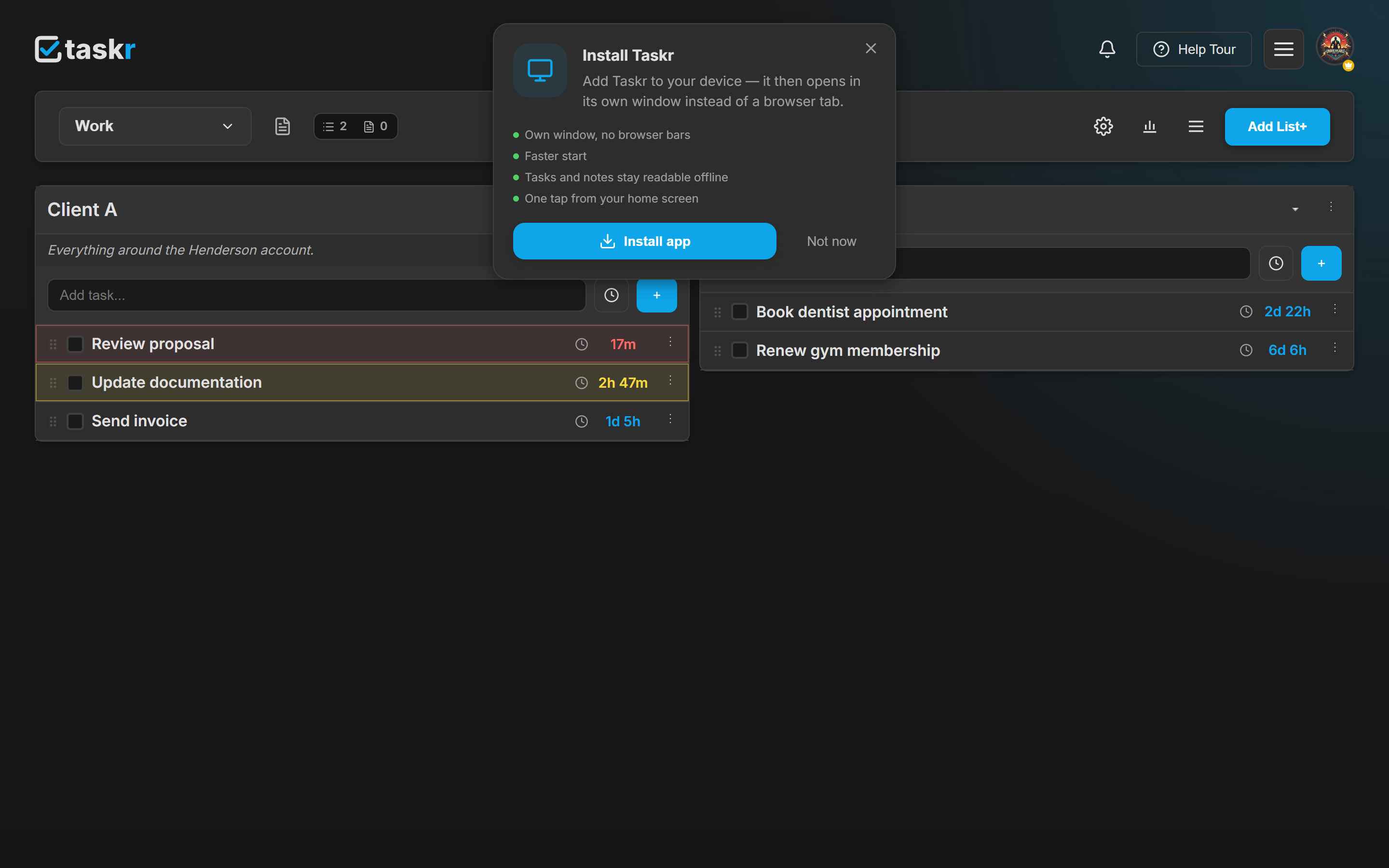
When your device can install Taskr, a card appears inside the app: Install Taskr, with what you get for the tap, and two buttons — Install app and Not now.
Install app hands over to the browser's own install dialog; confirm it and Taskr is on your computer or home screen. Not now hides the card for 30 days — it comes back on its own, and Settings → About keeps the entry point the whole time.
2. Or find it later in Settings → About
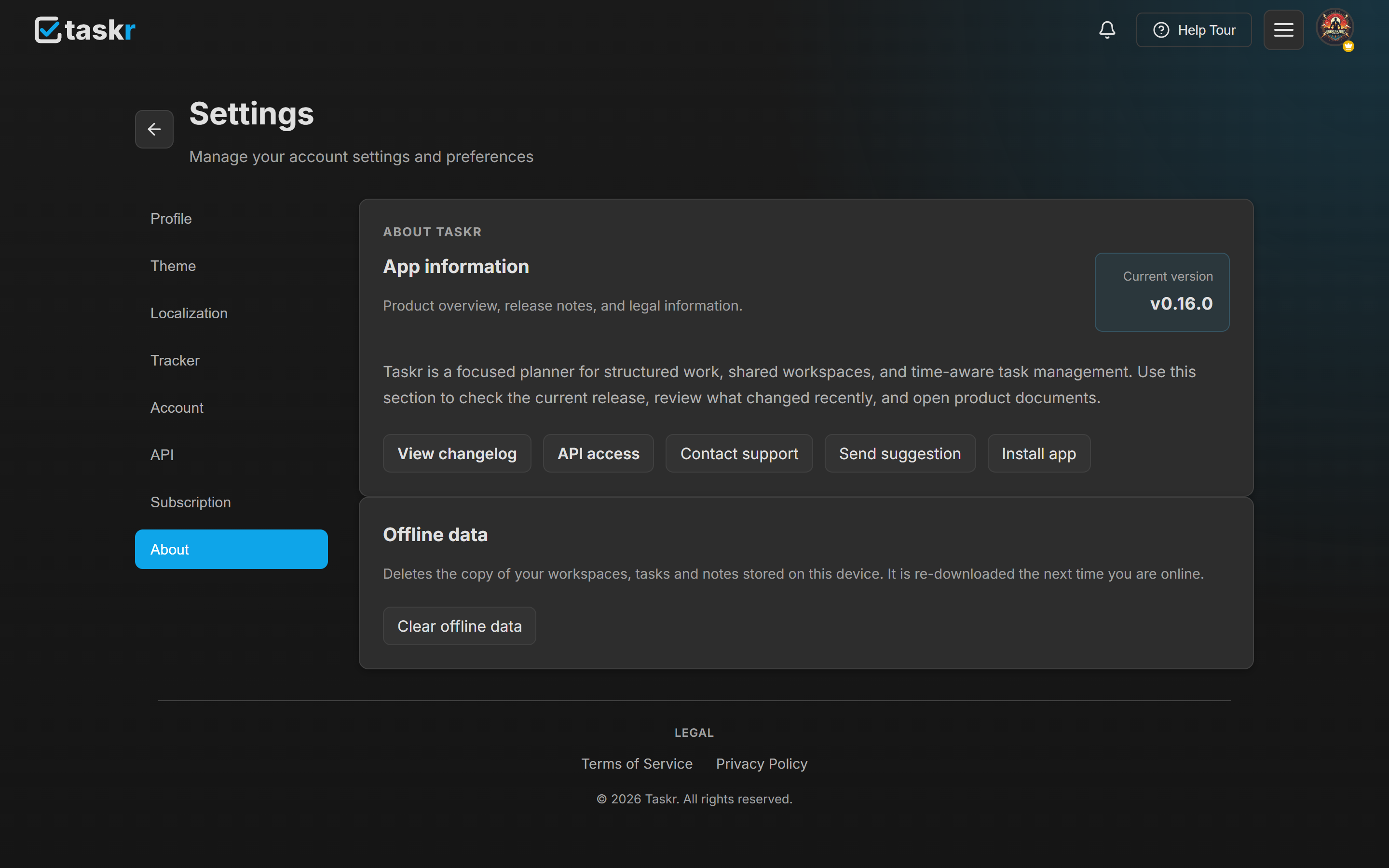
Dismissed the card weeks ago, or installing on a second machine? The same entry point lives in Settings → About, next to the current app version. It appears there as long as your browser can still install Taskr — including after the card was snoozed.
3. Android and iPhone install it slightly differently
The card adapts to the device in front of you:
- Android (Chrome) offers the same Install app button as desktop — the browser shows its own install dialog and Taskr lands on your home screen, where it opens full screen without the address bar. Chrome's own ⋮ menu carries the same install command.
- iPhone and iPad (Safari) has no install button to offer, so the card shows the steps instead:
- Tap the Share button in the Safari toolbar.
- Scroll down and choose Add to Home Screen.
- Tap Add.
- Safari on macOS installs from its own File menu (Add to Dock), and the card shows those three steps too.
In Firefox, or inside an in-app browser (Instagram, Messenger, and similar), installation is not offered at all — no card, no button. Open Taskr in Chrome, Edge or Safari to install it.
4. What still works without a connection
Once you have opened a screen on this device, Taskr keeps a copy of it — installed or not, that copy keeps working when the connection drops. The board still renders, the lists and their deadlines are still there, and a note body stays readable.
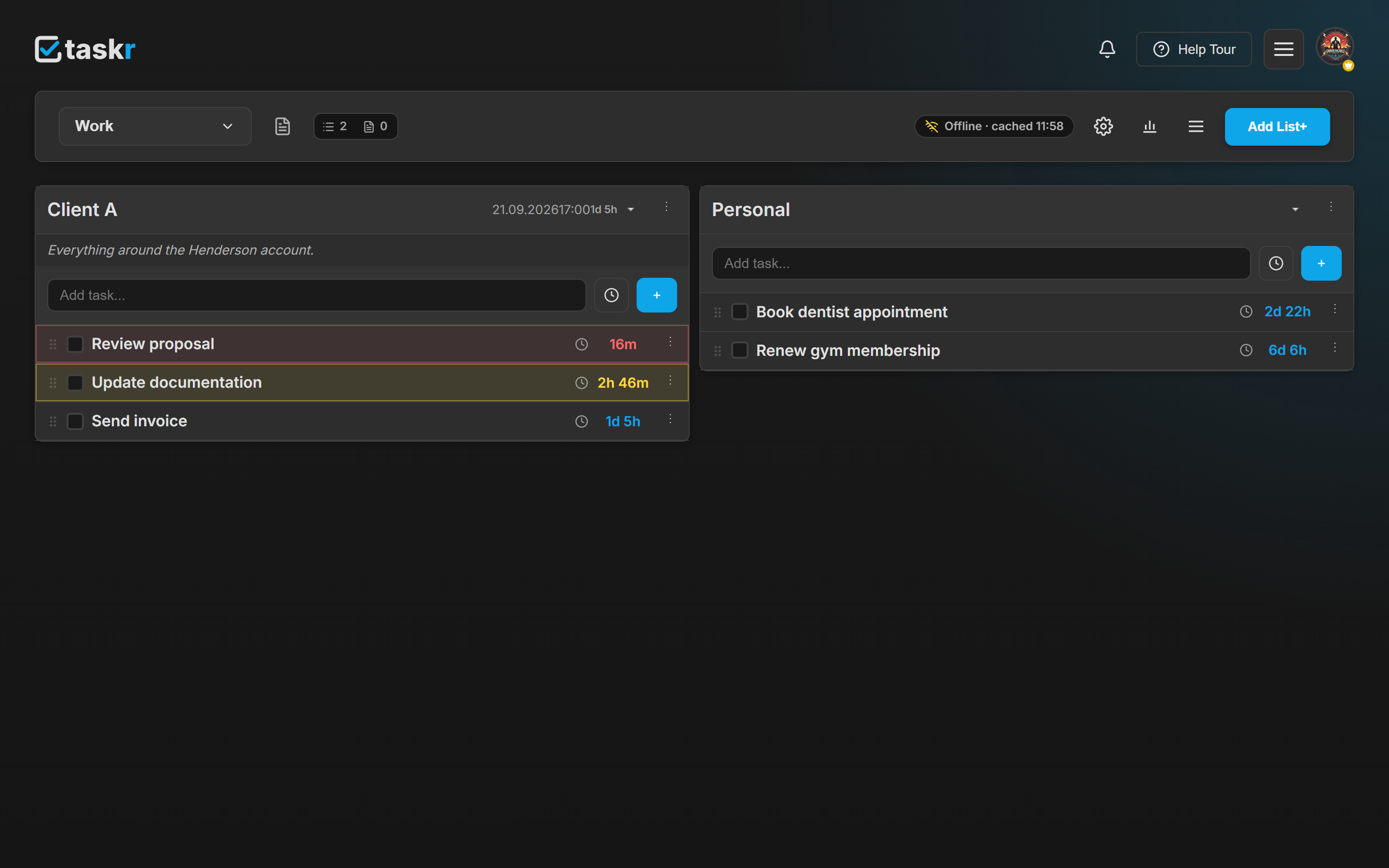
While you are offline a chip appears in the header — Offline · cached, followed by the time your data was last synced from the server. It is a status light, not an error.
What is not in that copy yet: a screen you have never opened while online. Ask for it with no connection and Taskr says You are offline and asks you to reconnect and open it once — after that it is saved for next time.
And writing? Changes need a connection. Offline, the board shows the last synced copy; new tasks, edits and completions go to the server when you are back online.
5. The copy on this device, and how to remove it
The offline copy lives in your browser's storage on this device. Settings → About → Offline data removes it in one click, with Clear offline data — useful on a shared or borrowed computer. Nothing is lost from your account: the data is downloaded again the next time you are online.

What happens next
- Reminders arrive as web push notifications. Installed, they land in Taskr's own window rather than a browser tab; on iPhone and iPad, Safari only delivers web push to apps that are on the Home Screen.
- Nothing to update by hand. Taskr is served from the web, so the installed app is the current version the next time it starts — Settings → About shows which one you are on.
- One account, every device. Install it on the desktop and the phone and the same workspaces are there; the countdowns are the same countdowns.
- Deadlines are what the app is for. If you have not set one yet, start with create your first task with a deadline.
If something does not look right
No Install card ever appears. Your browser cannot install the app — that is Firefox, or an in-app browser. Open Taskr in Chrome, Edge or Safari. On iPhone the card shows the Share-menu steps instead of an Install button.
Install app is gone from Settings → About too. Either Taskr is already installed on this device (look for its icon in your applications or home screen), or the browser cannot install it.
A task I added offline was not saved. Offline, the app only reads. The change needs a connection; the toast says so when you try.
A screen says "This page has not been saved for offline use yet." That screen was never opened while you were online. Reconnect and open it once — from then on it works without a connection.
I want the local copy gone from this computer. Settings → About → Offline data → Clear offline data. Your account is untouched; the app downloads the data again when you are online.
Ready when you are.
Create your first deadlineLast checked against the app: 2026-09-20