Put a deadline on a whole list
Not everything is a single task. A client's week, a study block, the errands you have to clear before 5 pm — those are containers, and their deadline belongs to the container, not to one item inside it.
In Taskr a list can carry its own date and time. One countdown in the list header then covers everything inside it, while each task keeps its own countdown on top of that.
1. The list header is where it shows
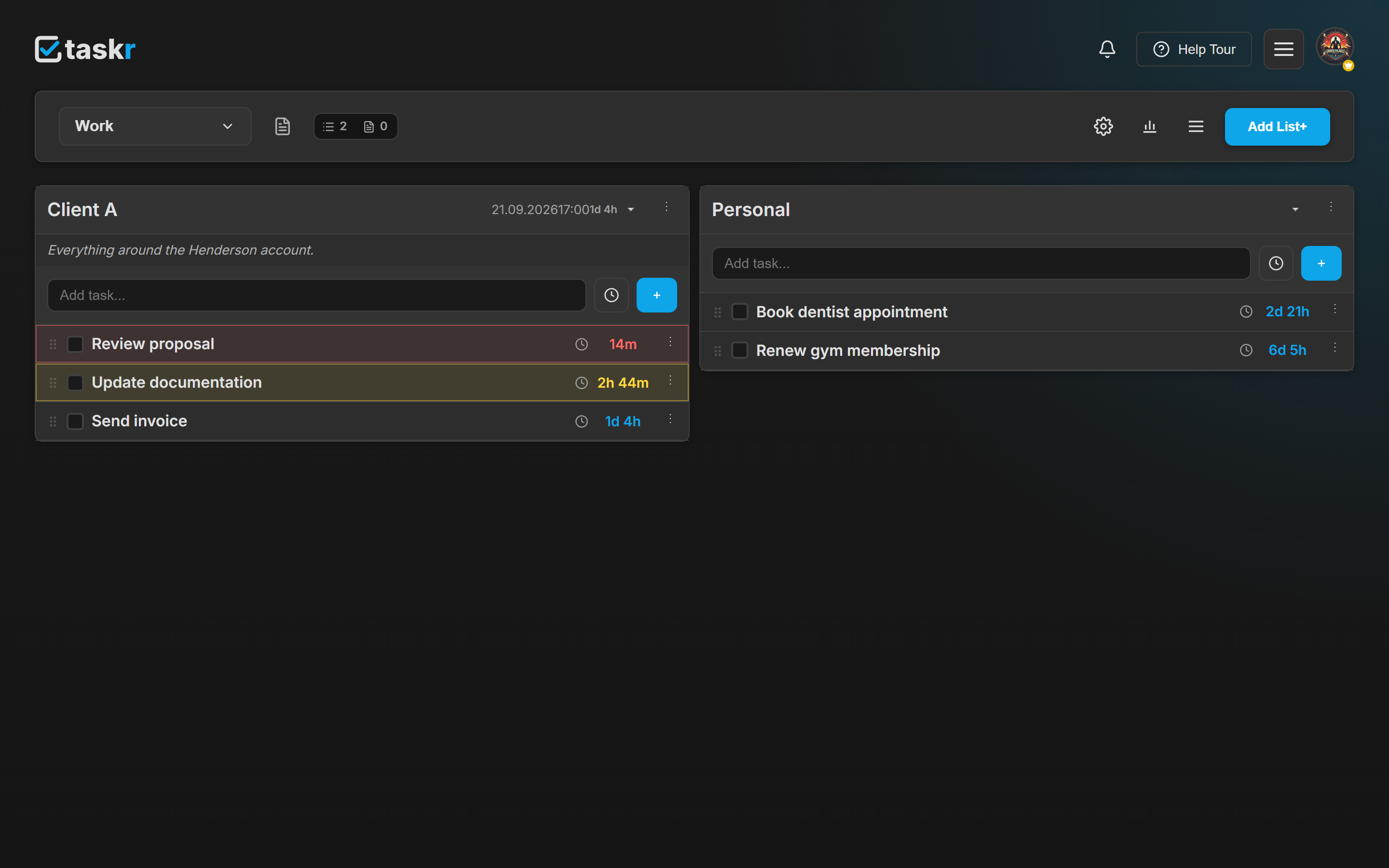
Every list header has room for a deadline, right next to the list name: the date, the time, and a live countdown in days and hours.
Below, Client A is due tomorrow at 17:00, so its header carries the date and time — and a countdown next to them that shrinks on its own. Personal has no deadline, and its header simply shows nothing extra — a list without one looks exactly the way it always did.
2. Open the list's menu
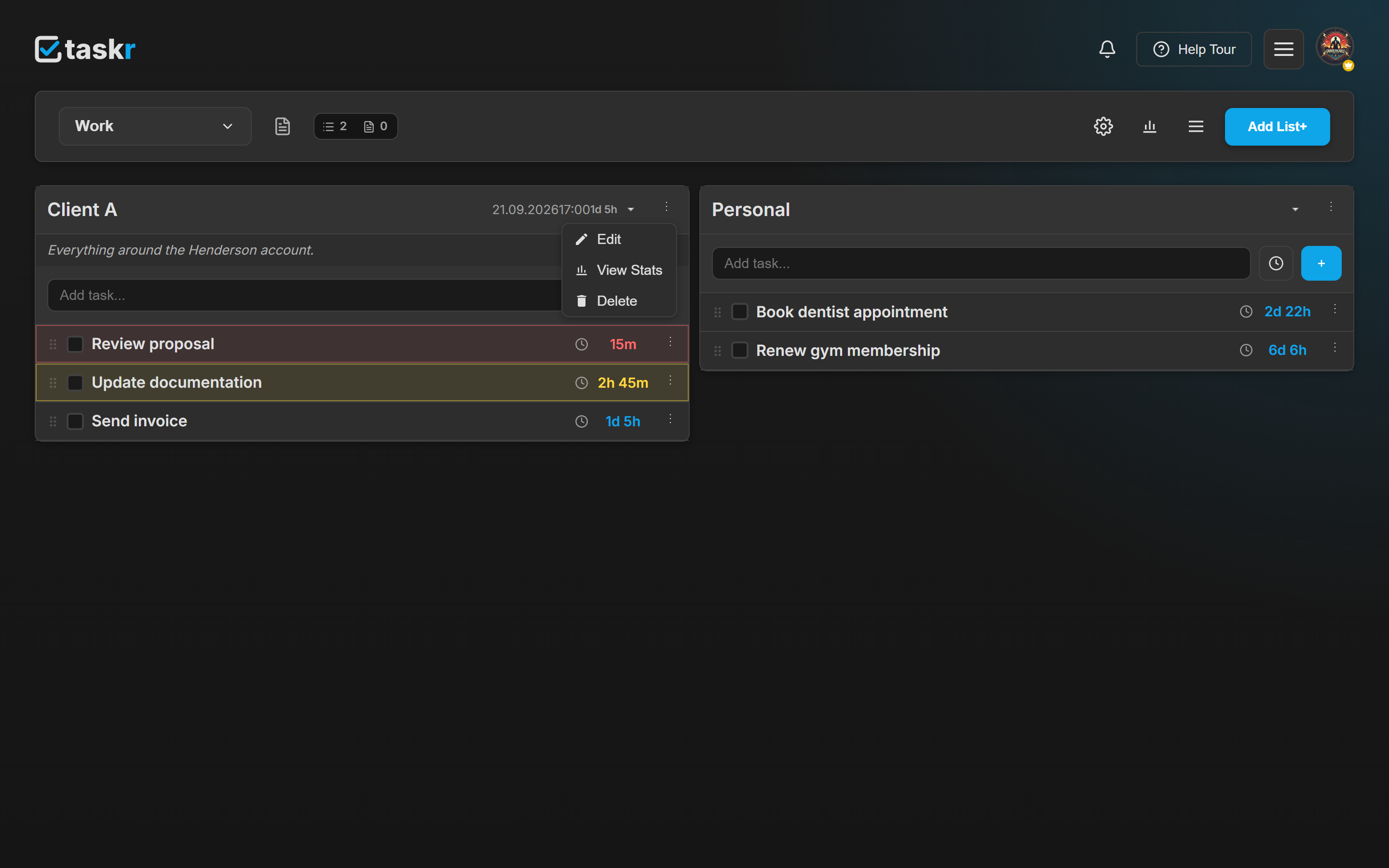
The deadline is edited from the list itself. Click the ⋮ menu in the list header — the three dots next to the collapse arrow — and choose Edit.
3. Fill in the date and the time
The Edit List dialog opens on the same list name and description you already know, plus a SCHEDULE section with two fields: Time and Date.
Set both. A date without a time still shows the deadline, but nothing counts down — Taskr needs the moment to count to.
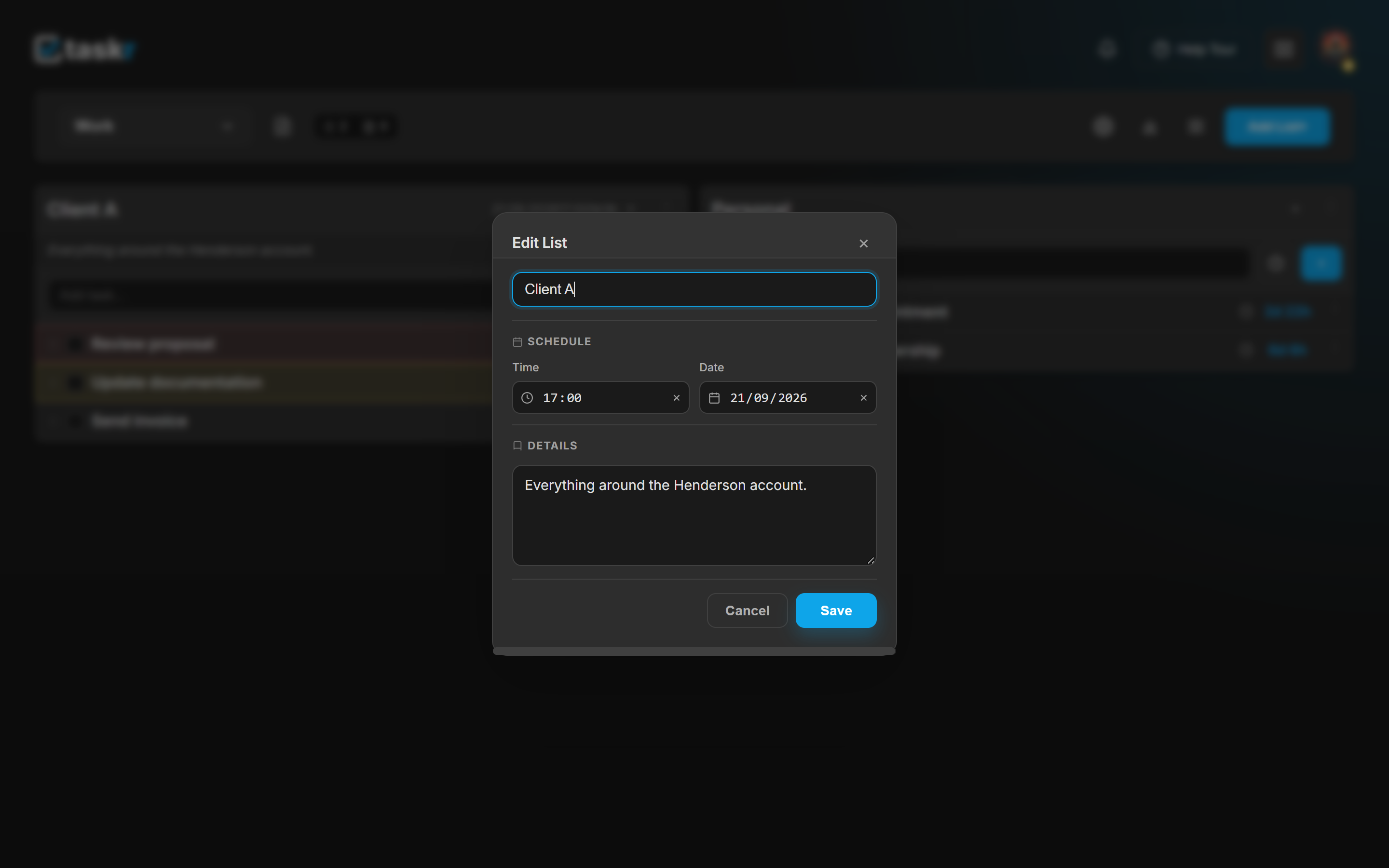
Press Save. The header now carries the date, the time and the countdown:

4. Or set it while you create the list
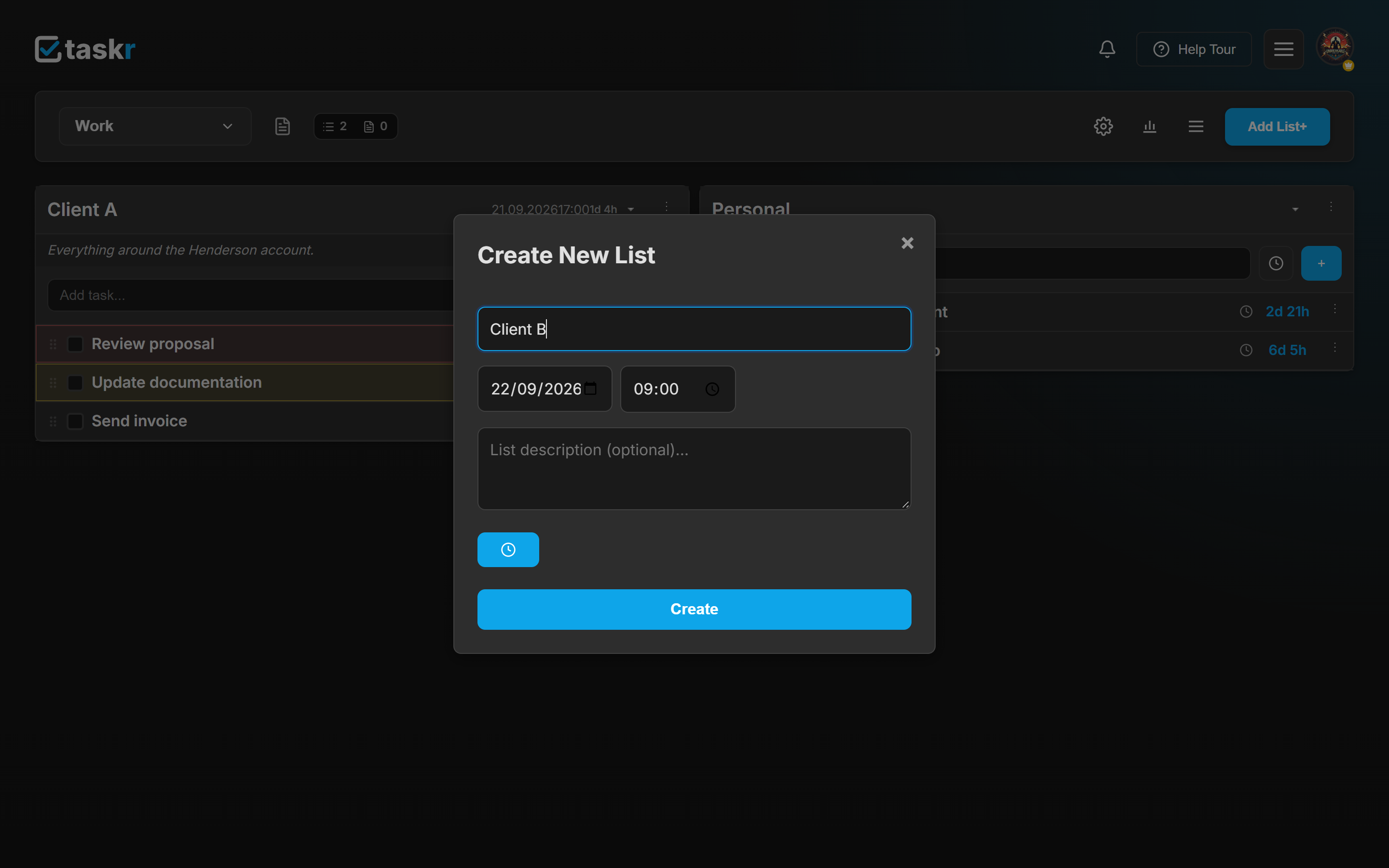
Same fields, one dialog earlier: click Add List+ in the toolbar, type the name, and use the clock button to reveal Date and Time before you press Create.
What a list countdown tells you
A list deadline behaves like a task deadline — it uses the same two thresholds and the same four states:
| State | When it happens | What you see |
|---|---|---|
| plain | further away than your orange threshold | the countdown in the normal text colour |
| orange | within Task turns orange minutes (default 20) | the countdown turns orange |
| red | within Task turns red minutes (default 10) | the countdown turns red |
| Due! | the deadline has passed | stays red, reading Due!, until you clear or move the date |
Both thresholds are shared with tasks and live in Settings → Tracker, as Task turns orange and Task turns red — change them once and every countdown in the app follows.
Two things worth knowing about the order on the board:
- A list does not move because of its deadline. Lists stay where you put them; you reorder them by dragging a list header. The deadline colours its countdown, it does not re-sort the board.
- The tasks inside the list do sort themselves by urgency — overdue first, then whatever is due soonest — exactly as described in create your first task with a deadline.
What happens next
- The whole day has one clock. Plan a client's day with a list deadline at 17:00 and the header counts down for you; the tasks inside keep their own, tighter deadlines.
- Editing works the same way forever. Open the ⋮ menu → Edit and change or clear the date; the same two fields edit the value instead of adding a second one.
- Deadlines survive the offline copy. Lists and their dates stay readable without a connection — see install Taskr on desktop and Android.
- Completed tasks keep their history and drop to the bottom of the list, so a finished list is still readable once the deadline has passed.
If something does not look right
The header shows the date but no countdown. The time is missing. Open ⋮ → Edit and set Time as well as Date.
My list does not move to the top even though it is due first. Lists are ordered by hand, not by deadline. Drag the list header to move it; only the tasks inside a list sort themselves.
The countdown colour is the wrong one for me. The thresholds are shared with tasks — adjust Task turns orange and Task turns red in Settings → Tracker.
I only see the deadline on one list. A list without a deadline shows nothing extra in its header. That is the normal state, not a hidden field.
Ready when you are.
Create a free accountLast checked against the app: 2026-09-20