Updated 21 September 2026
Your board, in the order you actually work
What it is
A board is a set of lists, and a list is a set of tasks. Both are dragged: grab the list card to move a whole project up or down, grab a task to move it inside its list. The order you leave behind is the order you get back on your next visit — it is stored on the server, not in the tab, so your phone shows the same arrangement as your desktop.
When you would use it
Monday morning: the two client lists matter more than the shopping list, and inside the bigger project the three things you are actually doing today should sit at the top. That is a twenty-second rearrangement, not a settings change. The same move handles a shopping list you want above the household chores, or a thesis chapter you want out of the way until the weekend.
How it works in Taskr
- Add lists with the Add List button in the top bar of the workspace, and tasks with the
quick-add row (
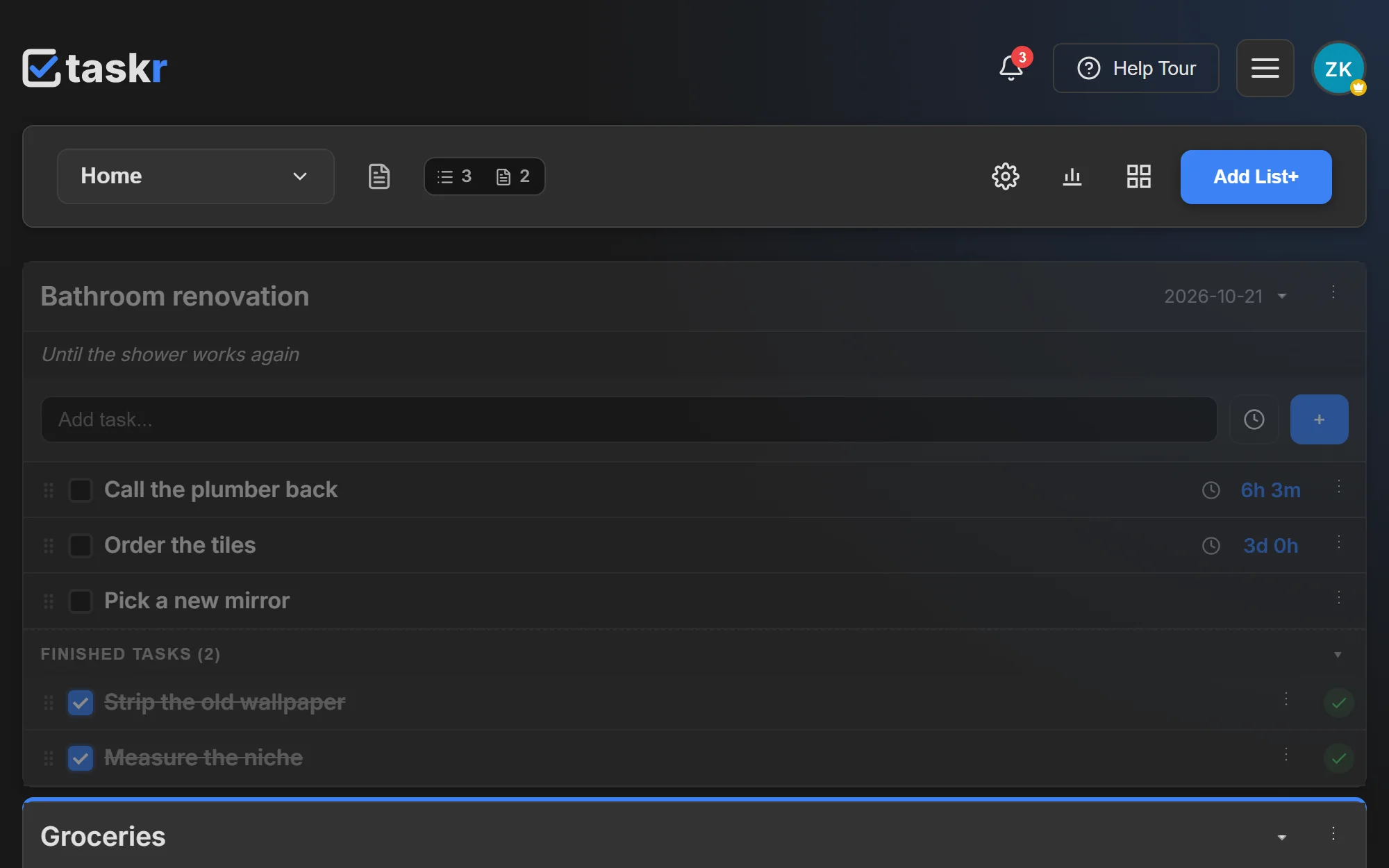
Add task…) at the bottom of any list — that row takes a date and a time as well, so a task can be born with its deadline already on it. - Drag a list card anywhere among the other lists. A blue line shows where it will land, and the new order is saved as soon as you let go.
- Drag a task inside its list the same way. Each row has a grip on hover; subtasks are managed from the task itself as a checklist — tick them off one by one and the parent stays in place.
- Collapse what you are not using. Any list folds down to its header, where the counters keep working: total tasks, finished, tracked time and how many are firing soon.
- Completed tasks get their own section under the active ones, in the order you finished them. They keep their history — a task you tick by accident is one click from being active again, and nothing is deleted by completing it.
What moves itself, and what does not
The order you set is not always the order you see, and that is deliberate. A task that has a date and a time sorts itself by urgency: the closest deadline is always at the top of its list, no matter how often you drag it down. Tasks without a date — or with a date but no time — keep exactly the position you give them and never reshuffle on their own. So if you want to control the top of a list by hand, leave the tasks undated, or accept that the firing ones outrank your arrangement.
What to watch out for
The free plan carries 2 lists with 10 tasks each in one workspace; Premium removes the limits on lists, tasks and notes, and Premium Plus removes the limit on workspaces as well. Dragging is a desktop gesture — the reorder uses the browser's own drag-and-drop, which a touch screen does not fire — so on a phone the order comes from the desktop, or from whatever the deadlines sort out by themselves.
Where to go next
- Workspaces, to give each project its own board
- Recurring tasks, for the items that come back on their own
- Guide: Create your first task with a deadline
Create a free account and put your lists in the order you want to work.
Ready when you are.
Create a free account