Updated 21 September 2026
Recurring tasks that come back on schedule, not when you remember
What it is
A recurring task is one task row with a repeat rule on it, not a list of pre-made copies. The row always holds the next occurrence, with its date and time, so it counts down like any other task. When the occurrence passes, the next one is written into the same row — the series moves on by itself, whether or not anybody opened the app that day.
When you would use it
Rent on the first of the month. The gym on Monday and Thursday. A client report every second Friday, for six weeks and then never again. The reason these end up in a task manager instead of a calendar is that they have a state — done or not done — and a calendar entry does not. A recurring task keeps both: the schedule that brings it back, and the tick that says this round is handled.
How it works in Taskr
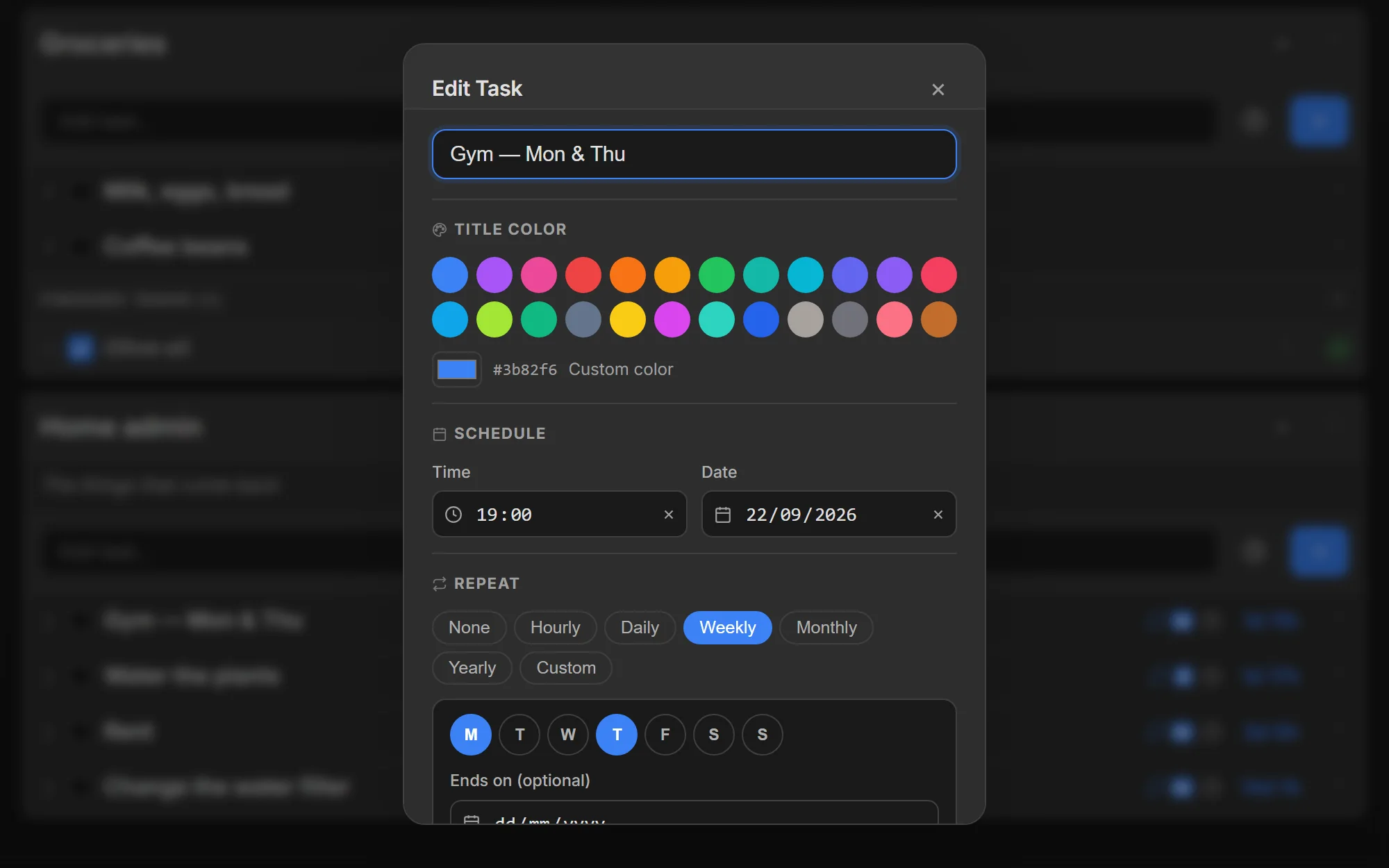
- Open the task's edit dialog and pick a repeat rule. The chips are None, Hourly, Daily, Weekly, Monthly, Yearly and Custom. Custom is "every N hours / days / weeks / months / years", which is how "every second Friday" and "every 90 days" are written.
- For a weekly rule, tick the weekdays. Monday and Thursday means two occurrences a week, and the task appears on each of those days with its own countdown.
- Optionally set an end date. "Ends on" closes a limited run by itself: the last occurrence happens, and no next one is scheduled.
- Tick it off when the round is done. The tick does not kill the series: the occurrence you completed stays in the list's Finished section as history, and the next one is created with the new date. Nothing to re-enter, nothing to re-schedule.
- Miss a round and nothing breaks. If an occurrence passes without a tick, the row rolls forward to the next one on its own, so the task never sits showing a date from last week.
- Know what "due" means. A recurring task counts as due for the first 5% of its own cycle. A daily task is due for about an hour and a quarter, a weekly one for roughly eight and a half hours — long enough to be visible, short enough that it does not sit lit up for a week. One deadline reminder fires per cycle, not per minute.
What to watch out for
Repeat rules are on every plan, including free — there is no separate "recurring tasks" upgrade. What a recurring task still needs is a time: it counts down from the date and time of its current occurrence, and a date without a time will not count. A short custom cycle has a short due window by definition — an hourly task is only "due" for three minutes — so if you need a longer warning, schedule it with a wider interval rather than expecting the window to stretch. Each completed round becomes a finished row of its own and the new occurrence is a new task, so completed occurrences count towards the task limit of the workspace owner's plan; a monthly repeat does not, however, create twelve tasks for the year in advance.
Where to go next
- Countdown timers, for how the remaining time is read
- Drag-and-drop task lists, where the finished occurrences go
- Guide: Create your first task with a deadline
Create a free account and put the thing you keep re-typing on a repeat rule.
Ready when you are.
Create a free account