Updated 31 October 2026
Notes that live where the tasks live
What it is
Notes are a full markdown editor inside the workspace — the same one the task descriptions use. A note has a title, a body you write in markdown (headings, lists, quotes, code blocks, tables, links, images, diagrams), a pin, and two switches that change who sees it and who may change it. Notes belong to the workspace rather than to a person, so the brief for a project sits next to the tasks it describes instead of in a separate document that nobody reopens.
When you would use it
"What we agreed" after a client call: three bullets, a table of prices, a screenshot of the mocked-up form. Or the runbook for a deploy, the login details of a router, the summary of a doctor's report. These are not tasks — they have no deadline and no checkbox — but they are useless in a second app, because the moment you need them is the moment you are looking at the board.
How it works in Taskr
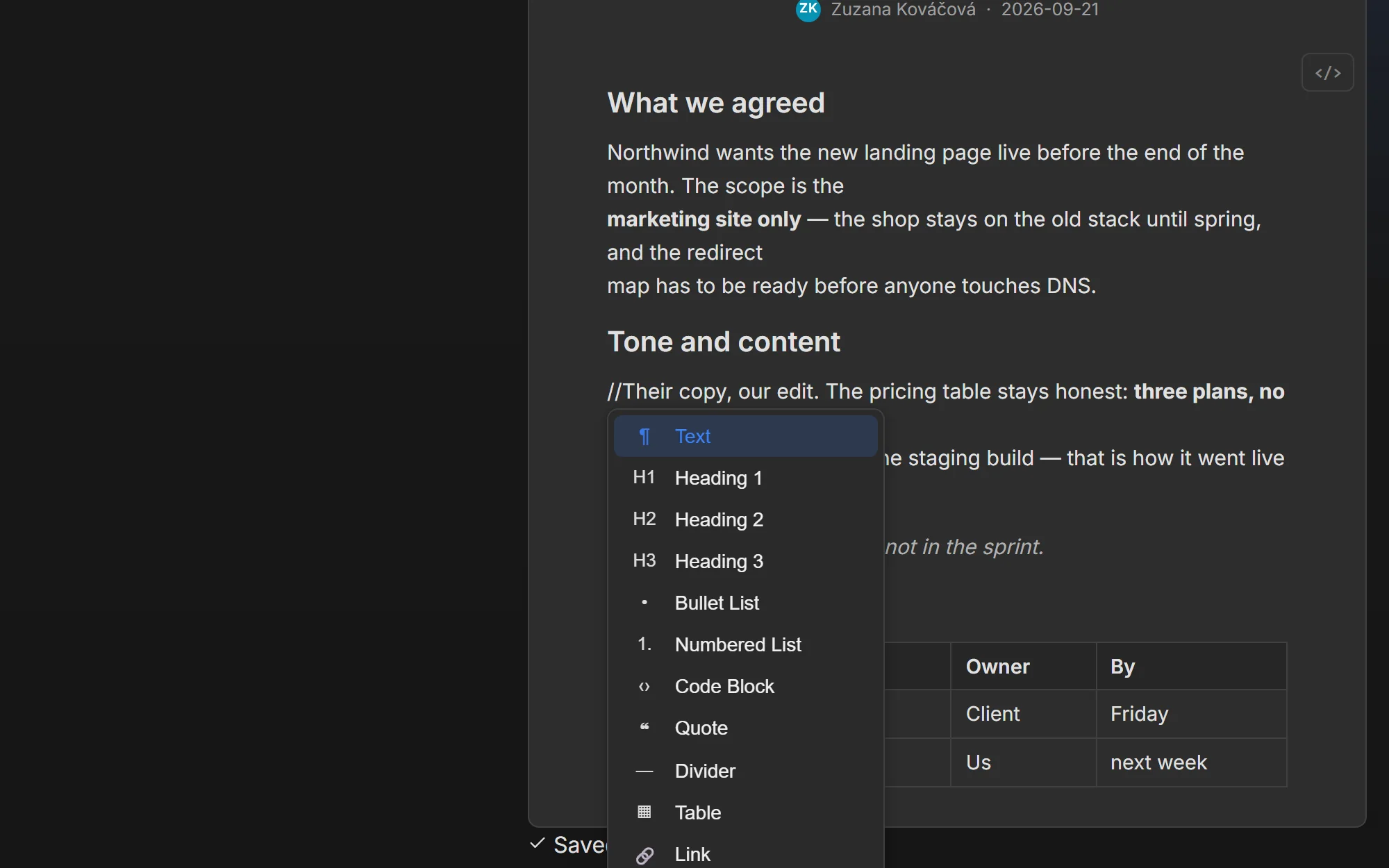
- Open Notes in the workspace and add one. Type
/for the block menu — headings, lists, code block, quote, table, link, image — or write markdown directly and it renders as you go. - Upload the pictures into the note. Images and files live in the workspace's own storage and count against the plan's quota (100 MB on free, up to 25 GB on Team).
- Draw a diagram from text. Type
/diagram, describe a flowchart, sequence diagram or Gantt chart in a few lines of Mermaid, and watch the preview update as you type. The diagram guide shows it step by step. - Pin the ones you need in front of you. Pinned notes appear in their own section on your dashboard, so the current brief is one screen away from the board.
- Make a note private when it is for nobody else: then it is visible only to you, and not even the workspace owner can open it. Only you can switch it back.
- Lock a note to freeze its content. A locked note can still be pinned and deleted, but nobody — including its author and the owner — can edit the text or restore an older version until an owner or moderator unlocks it.
- Open Version history when you want an earlier draft back. Edits are snapshotted automatically, roughly once per editing session, and any version can be previewed and restored. Restoring keeps a snapshot of what it replaced, so the restore itself can be undone.
What to watch out for
The free plan carries 2 notes per workspace; Premium, Premium Plus and Team remove that limit. Version history and restore are editor-and-up: a viewer reads notes but cannot open the history at all. Everything about a private note is deliberate — it is invisible to the rest of the workspace, including the mention of it in counters, and activity entries for it are not written, so a private note is not a place to hide the work somebody else is waiting on. And a locked note is locked for everyone: if you are the one who locked it and you later want to edit it, the way back is the same button, and that one needs the owner or moderator role.
Where to go next
- Team collaboration, for the roles that decide who may edit notes
- Workspaces, for where notes sit relative to lists and statistics
- Guides: draw diagrams in your notes, or browse the Taskr guides
Create a free account and write the thing down next to the tasks it belongs to.
Ready when you are.
Create a free account