Updated 21 September 2026
Countdown timers that make the deadline impossible to ignore
What it is
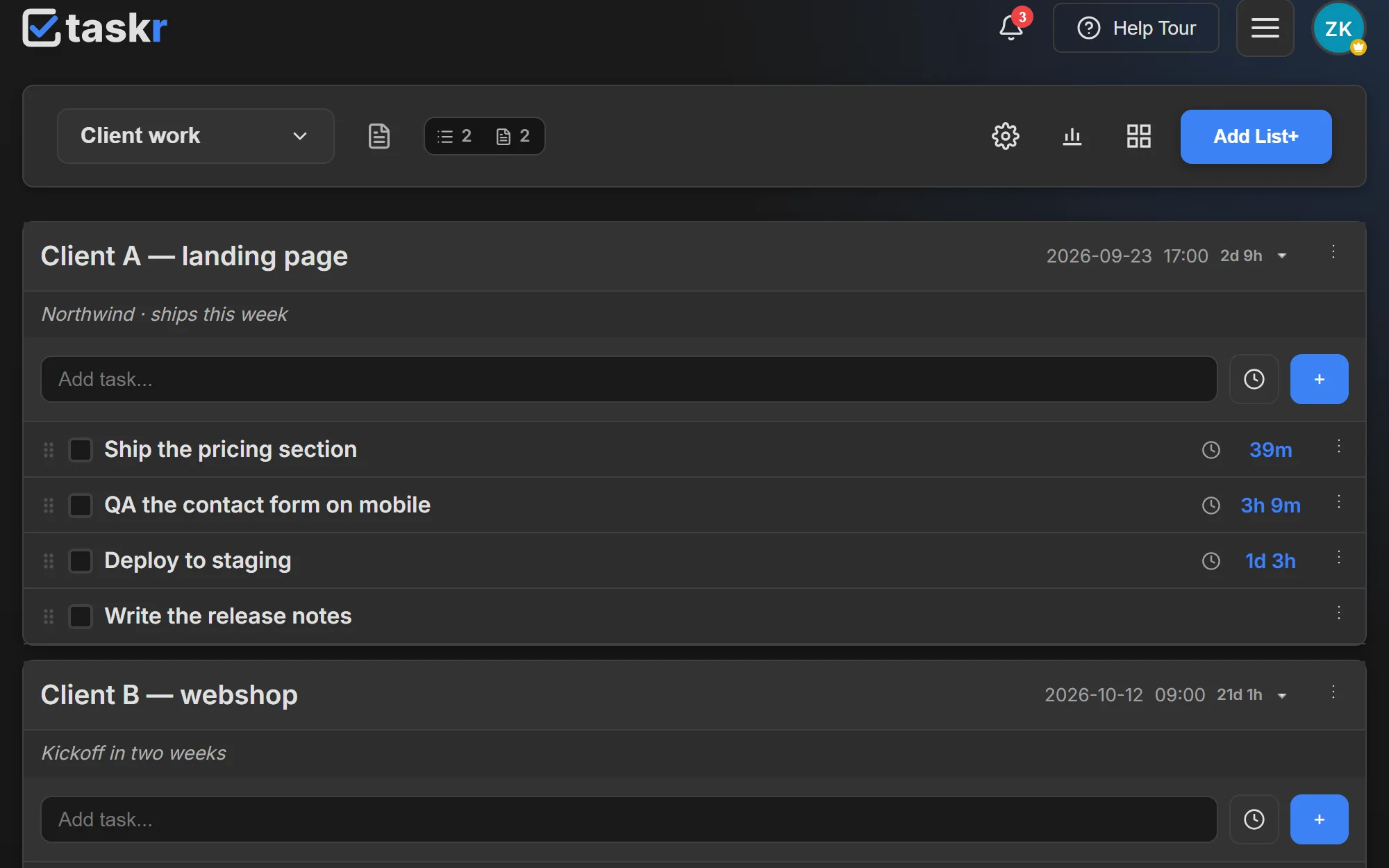
A countdown is what a due date looks like once it has a time attached to it. From the moment the
date and the time are saved, the task shows how much is left: 45m in the last hour, 3h 20m
inside the day, 5d 4h while there is still room, and Due! the moment the clock passes it. The
label recalculates while the board is open, so you never have to work out in your head whether
17:00 today is still far away.
When you would use it
A client tells you on Monday that the pricing page has to be live by Tuesday 17:00. You do not want a note that says "Tuesday" and a second reminder somewhere else — you want to open the board on Tuesday morning and see that the thing that matters has three hours left, in a colour you do not have to read. The same applies to a stag do, a visa appointment, or a tax return: one date, one clock, one place it lives.
How it works in Taskr
- Edit the task and give it a date. Add a time as well — the countdown needs both. You can do it from the quick-add row when you create the task, or later from the task menu.
- Or put the deadline on the whole list. A list carries its own date and time, and every task inside it shows that countdown instead of repeating the same date on twenty tasks.
- Watch the colour change. The remaining time turns amber at the warning threshold and red
near the end. Defaults are 20 minutes for amber and 10 minutes for red, and both are yours to
set in Settings → Board (
/settings?tab=board) on every plan, free included. - Let the list sort itself. As soon as a task has a date and a time it sorts by urgency, so the closest deadline is always the first task in the list. Undated tasks stay exactly where you put them — nothing shuffles behind your back.
- Get the reminder if you want one. Deadline reminders and web push notifications can tell you the moment is coming even when the board is closed.
What to watch out for
A date without a time still shows a deadline, but nothing counts down — the task waits for a time. If a countdown looks frozen, that is almost always why. Countdowns follow the timezone saved in your settings, so a task set in Bratislava reads correctly on a laptop in Lisbon. And the whole feature is on every plan including free: the countdown, the two colours, and the thresholds themselves (Settings → Board).
Where to go next
- Recurring tasks, when the same deadline comes back every week
- Workspaces, to keep client deadlines out of your personal list
- Guides: Create your first task with a deadline and put a deadline on a whole list
Create a free account and give your next task a time — the countdown starts on its own.
Ready when you are.
Create a free account